
Application Lock Down Mode (LDM)
Application Lock Down Mode (LDM) is recommended for corporate environments to protect systems from new and zero-day threats.
LDM Modes
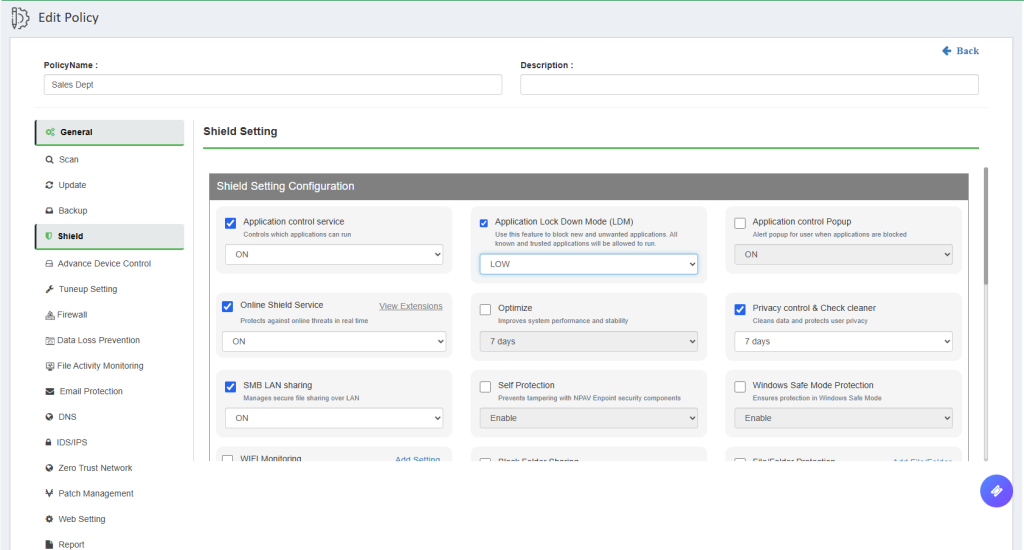
Low
- Blocks new and unwanted applications.
- Allows all known and trusted applications to run.
- The Application Whitelist is regularly updated by the Net Protector Security Lab.
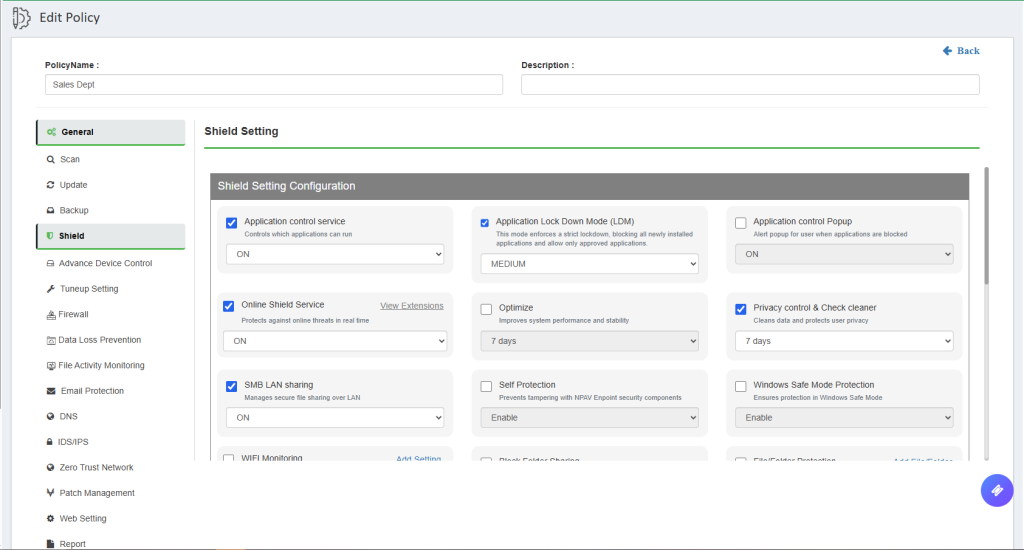
Medium
- Enables strict application lockdown.
- All applications previously used before enabling this mode are automatically approved.
- Any new application launched after enabling this mode will be blocked.
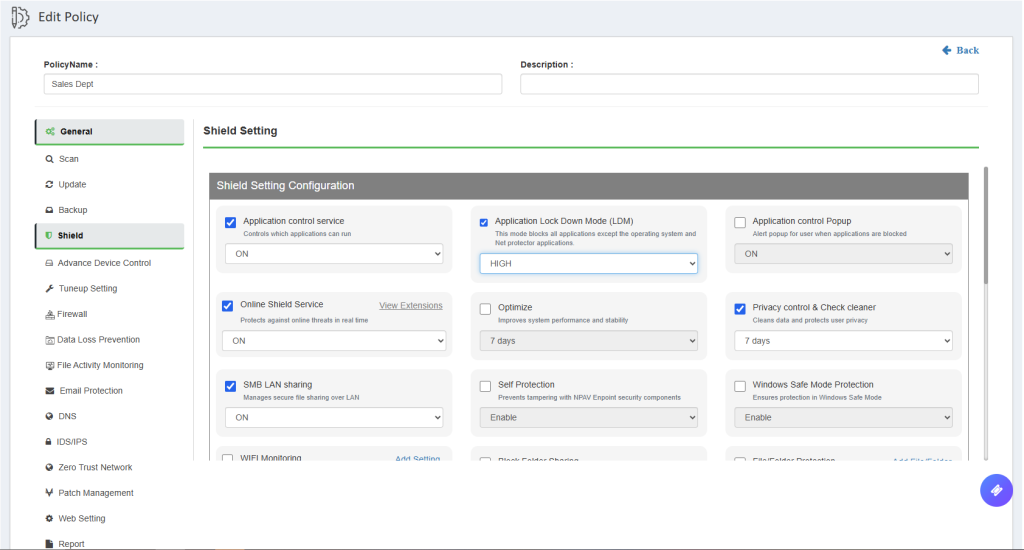
High
- Blocks all applications except operating system processes and Net Protector Endpoint Security.
- Administrators can allow Blocked applications by adding them to the Application White List.
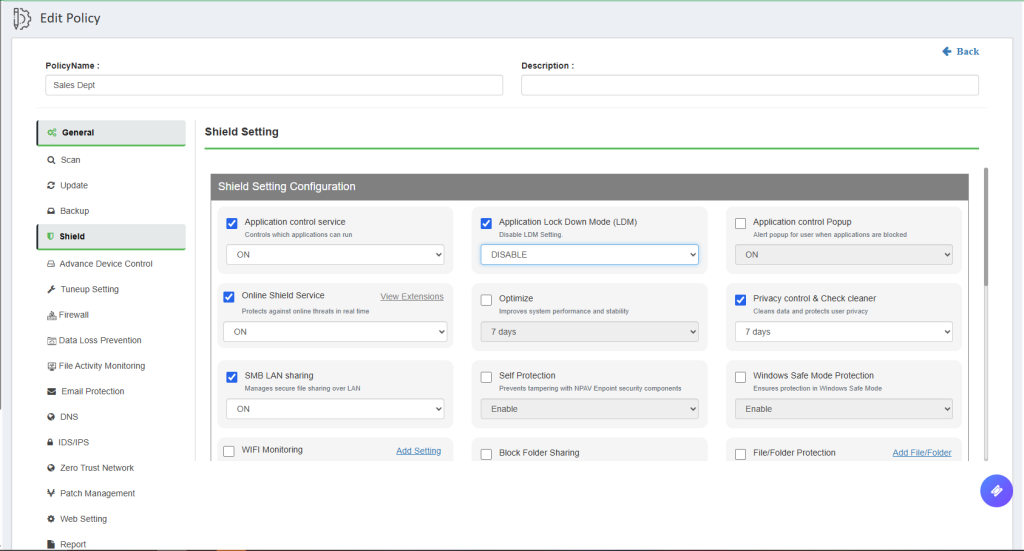
Disable
- Disables Application Lock Down Mode.
Follow the steps below to enable Application Lock Down Mode:
Step 1: Select the Policy
Go to Policy Management and select the required policy.
Step 2: Enable Low Mode
- Go to the Shield tab.
- Select the LDM Setting checkbox.
- Select Low mode.
- Click Apply Policy.
Step 3: Enable Medium Mode
- Go to the Shield tab.
- Select the LDM Setting checkbox.
- Select Medium mode.
- Click Apply Policy.
Step 4: Enable High Mode
- Go to the Shield tab.
- Select the LDM Setting checkbox.
- Select High mode.
- Click Apply Policy.
Step 5: Disable LDM
- Go to the Shield tab.
- Select the LDM Setting checkbox.
- Select Disable mode.
- Click Apply Policy.
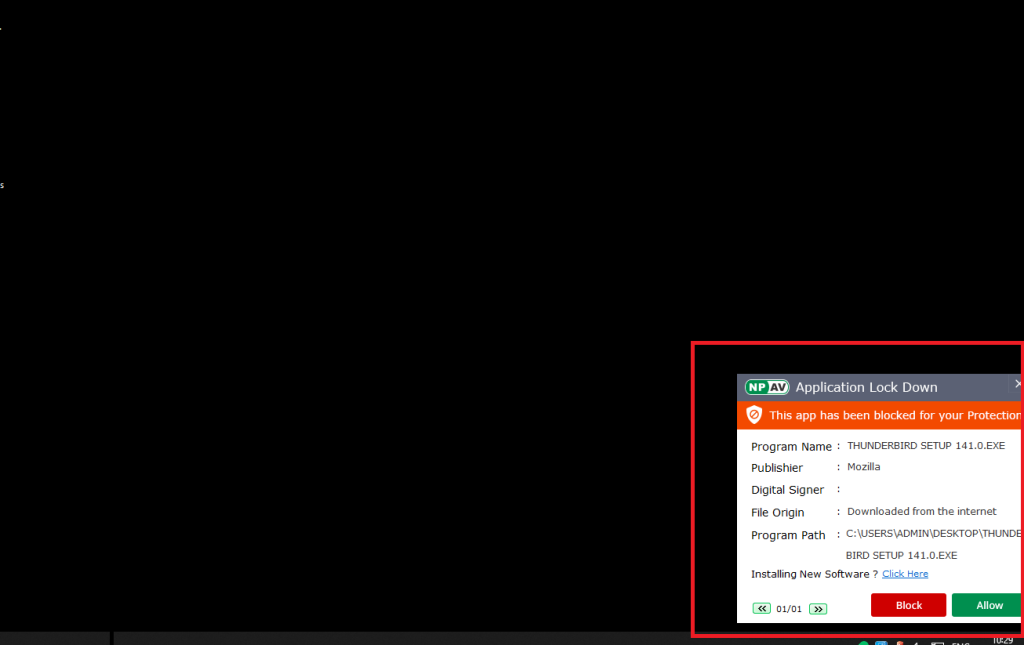
When a blocked application is launched, LDM blocks the application and displays a popup.
To allow the application:
- Click Allow.
- If a password is configured from the EPS Server, enter the password.
Temporarily Unlock Application Lock Down
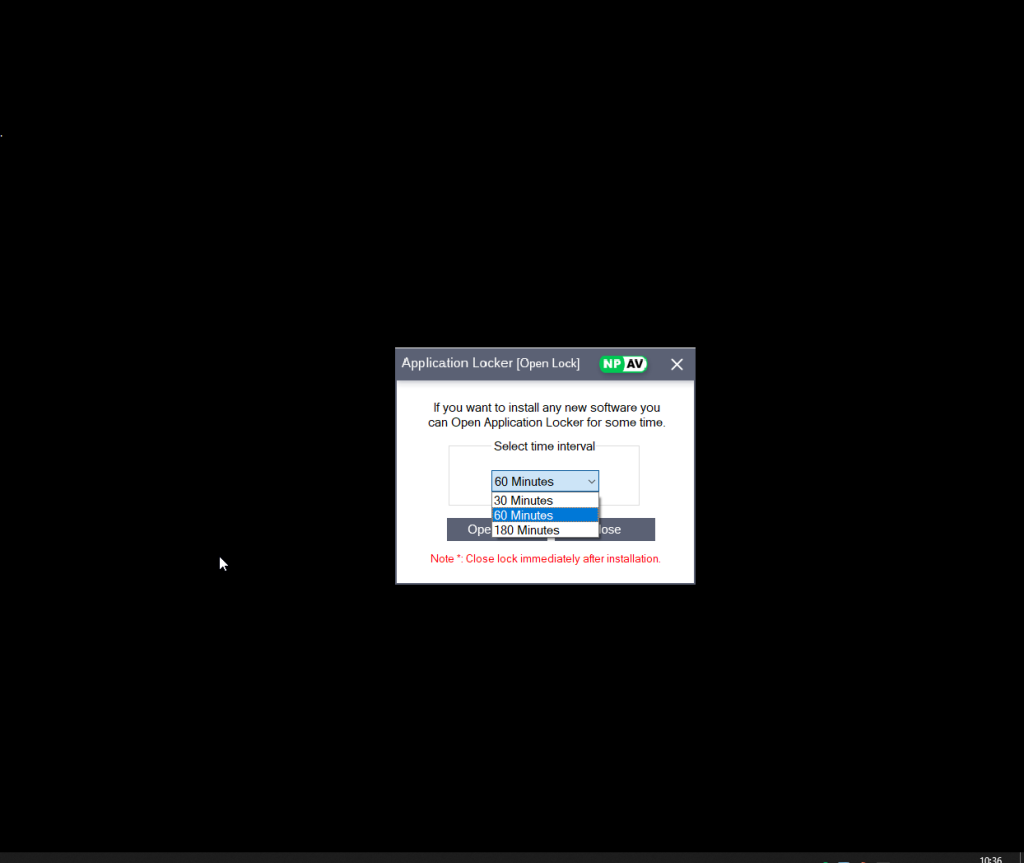
To install new software, you can temporarily Disable the Application Lockdown Mode.
- Click the Click Here hyperlink.
- The Application Locker window will open.
- Select the required Time Interval.
4. Click Open Lock.
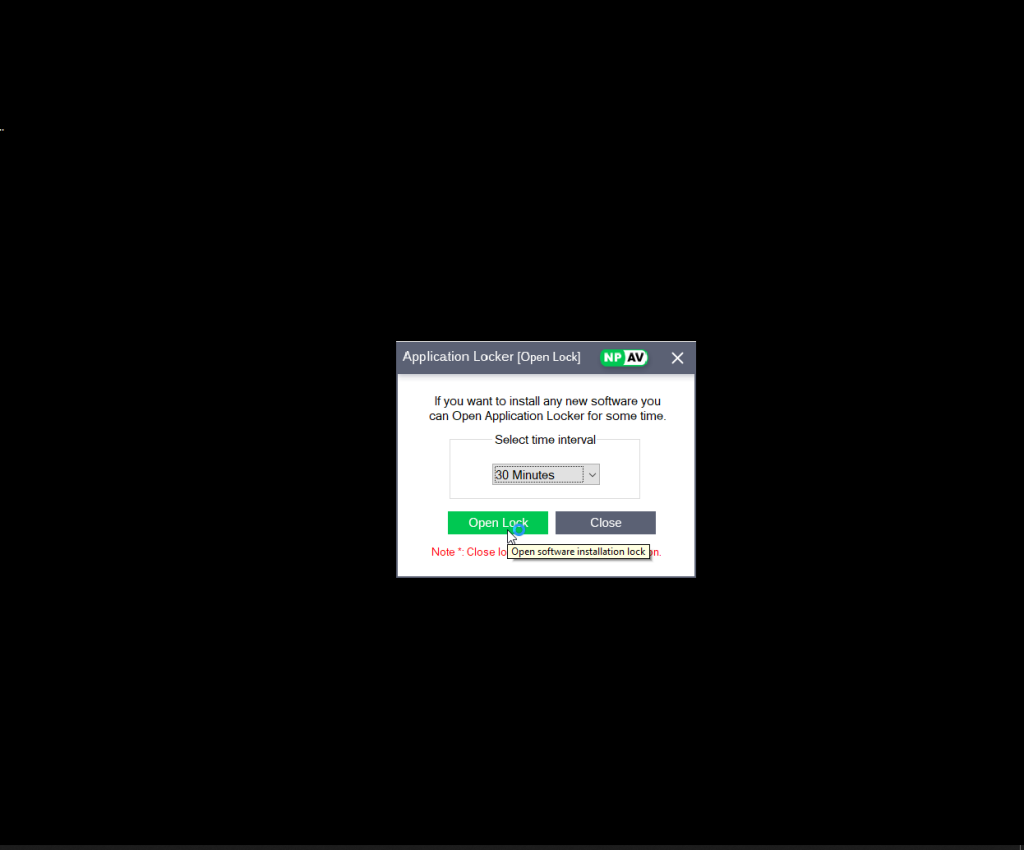
After installing the software, it is recommended to close lock.
