
Application Control is a powerful feature in Endpoint Security (EPS) – Admin Console that enables administrators to control which applications can run on endpoint devices.
Its primary purpose is to improve organizational productivity by blocking unauthorized or unnecessary applications while allowing only approved applications to run.
With Application Control, administrators can:
- View applications running on client PCs connected to the network.
- Block or allow specific applications.
- Create different application control policies for different departments.
- Manage application control remotely without visiting client PCs.
- Administer application control through the web console or the local Endpoint Security Server.
How to Configure Application Control
Follow the steps below to implement Application Control in your organization.
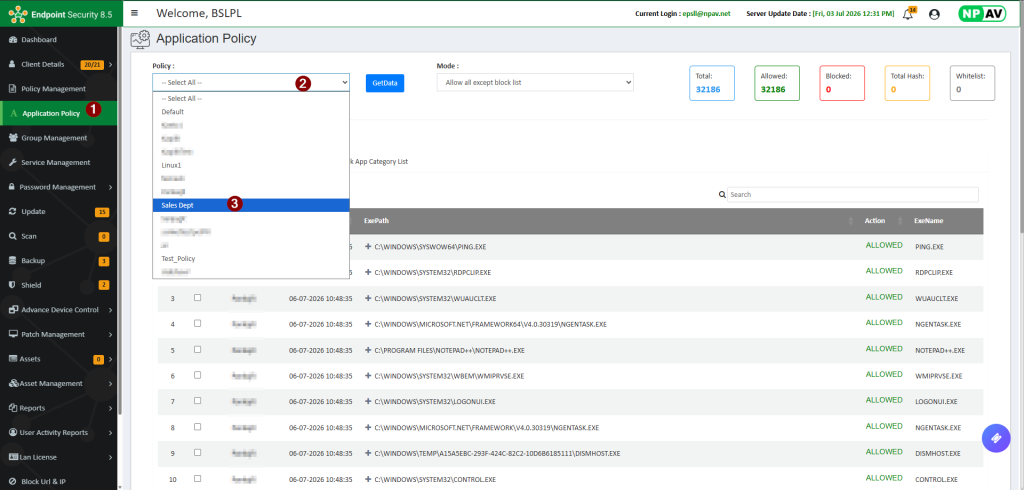
Step 1: Open the Application Policy
- Log in to the Endpoint Security Dashboard.
- Navigate to the Application Policy tab.
- Select the required policy.
Step 2: Import the Launch Process Report
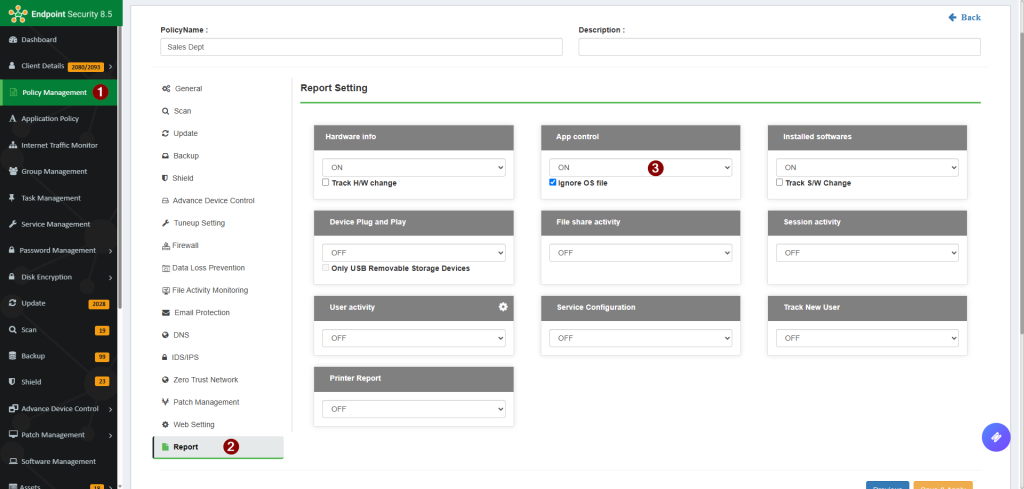
To import the list of applications running on client systems:
- Go to Policy Management.
- Select the required policy.
- Click Report.
- Enable the App Control Info checkbox.
- Select ON from the drop-down list.
- Click Update Policy.
Note:
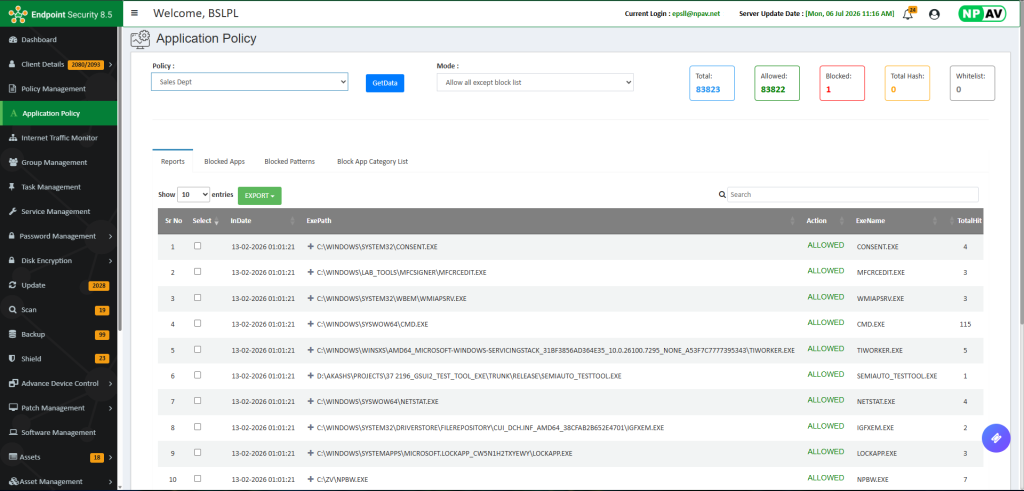
- If you do not want to include operating system processes, select the Ignore OS File checkbox.
- After the policy is updated, the client’s launched processes will be imported and displayed in the Report tab.
Step 3: Block Specific Applications
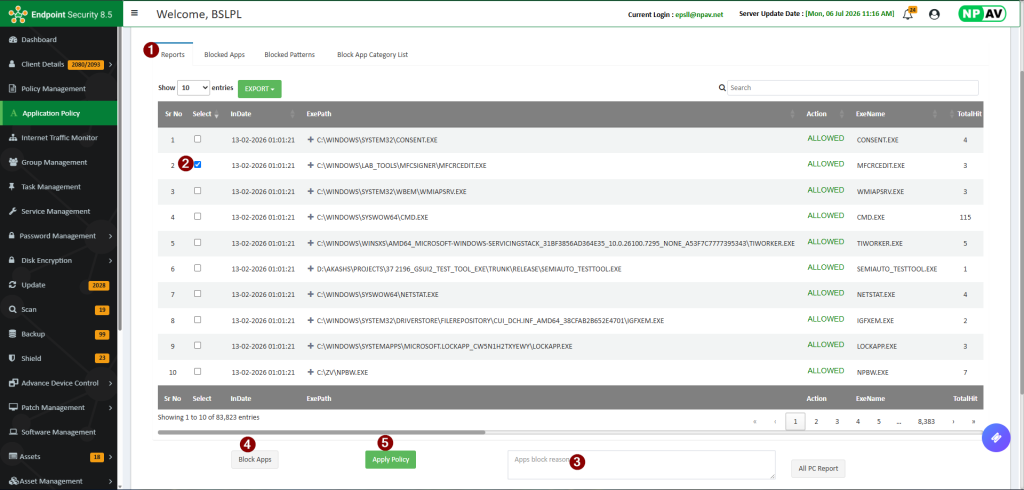
To block selected applications:
- Go to Application Policy.
- Select Allow All Except Block List mode.
- Select the required policy.
- Search for the application in the report.
- Select the application’s checkbox.
- Enter the reason for blocking the application.
- Click Block Apps.
- Click Apply Policy.
Step 4: View Blocked Applications
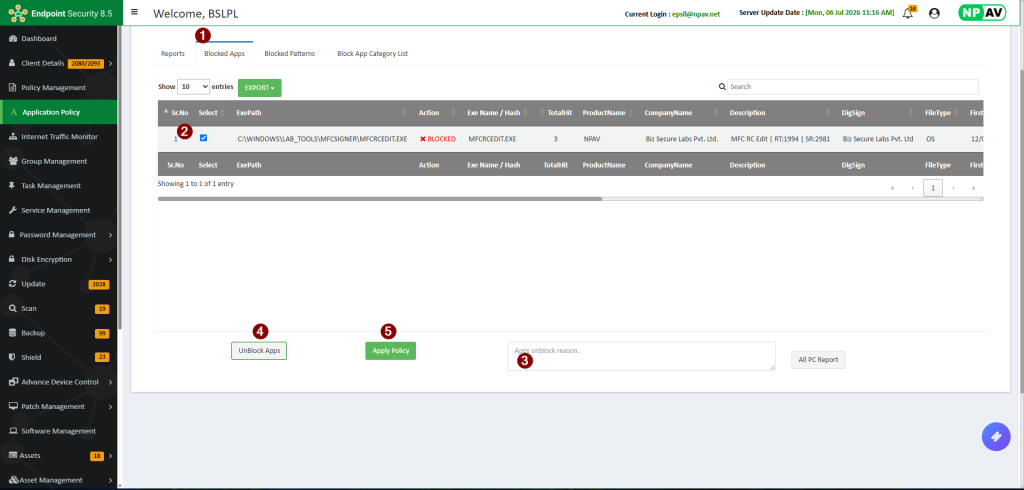
After applying the policy, the blocked applications will appear under the Blocked Apps tab.
Step 5: Unblock an Application
To remove an application from the blocked list:
- Open the Blocked Apps tab.
- Select the application you want to unblock.
- Enter the reason for unblocking the application.
- Click Unblock Apps.
- Click Apply Policy.
Step 6: Block Applications Using a Pattern
This feature allows you to block multiple applications that share common attributes.
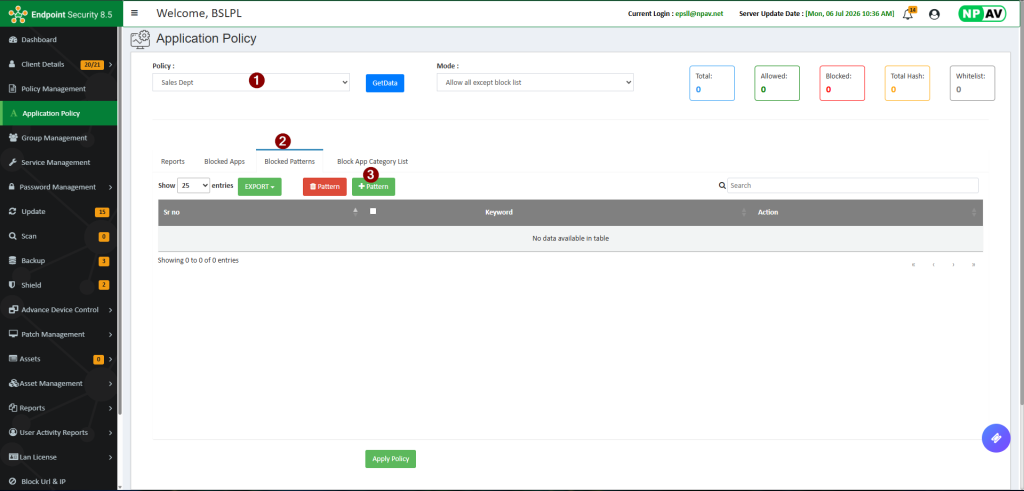
To create a blocking pattern:
- Go to Application Policy.
- Select the required policy.
- Open the Blocked Pattern tab.
- Click Add Pattern.
- Enter one or more of the following details:
- Process Path
- Company Name
- Internal Name
- Product Name
- Description
- Save the pattern.
- Click Apply Policy.
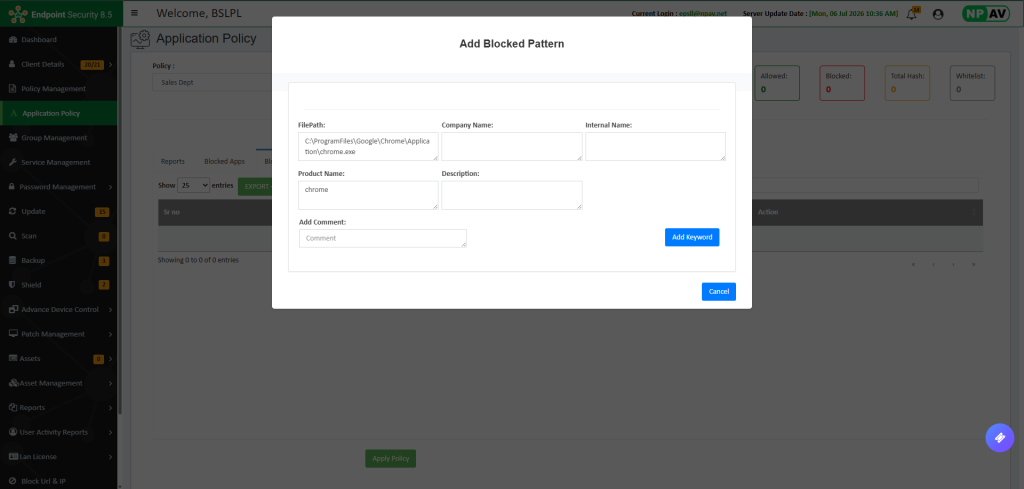
Applications matching the specified pattern will be blocked automatically.
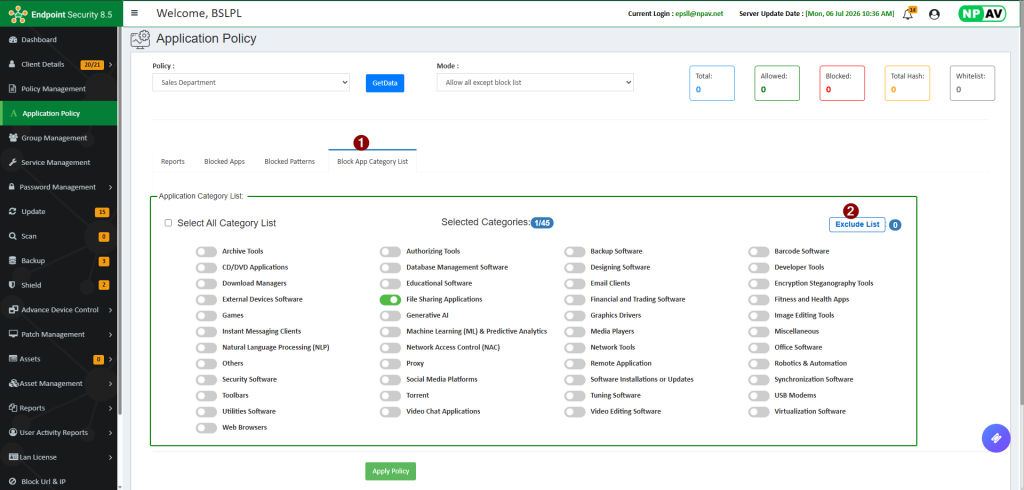
Step 7: Block Applications by Category (Allow All Except Block List Mode)
To allow all applications except those belonging to selected categories:
- Select Allow All Except Block List mode.
- Click Block App Category List.
- Select the application categories that you want to block.
- Click Apply Policy.
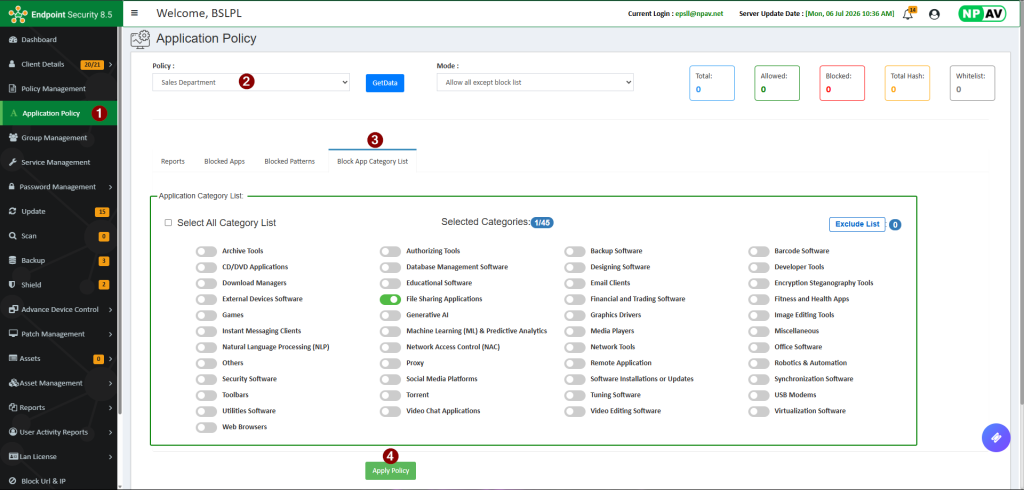
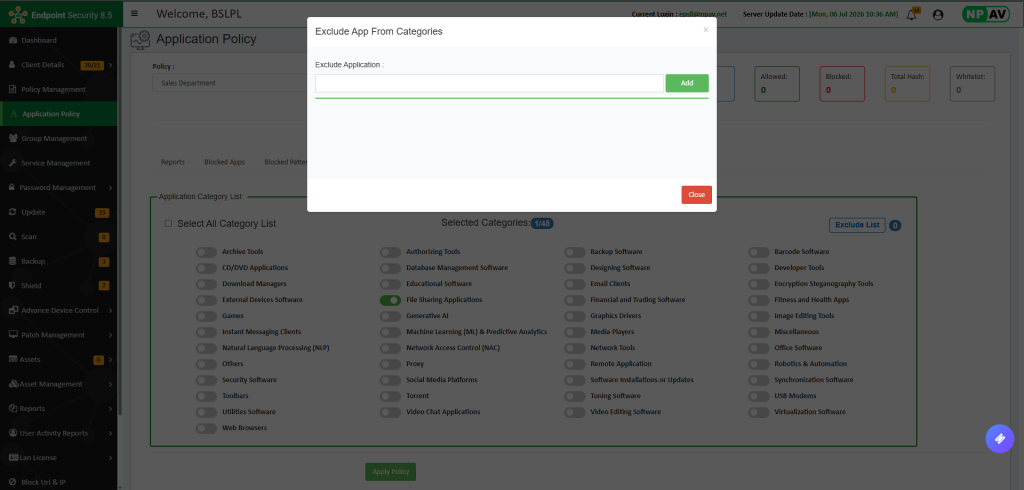
Exclude Applications (Optional):
If you want to allow a specific application from a blocked category:
- Add the application to the Exclude List.
- Click Apply Policy.
Note:
The Exclude List allows specific applications to run even if their category is blocked. In other words, all applications in the selected category will be blocked except the applications added to the Exclude List.
Step 8: Allow Only Approved Applications
To allow only approved applications:
- Select Block All Except Allow List mode.
In this mode:
- All applications are blocked by default.
- Only operating system processes and Net Protector Endpoint Security components are allowed.
- Administrators can add additional approved applications to the Whitelist.
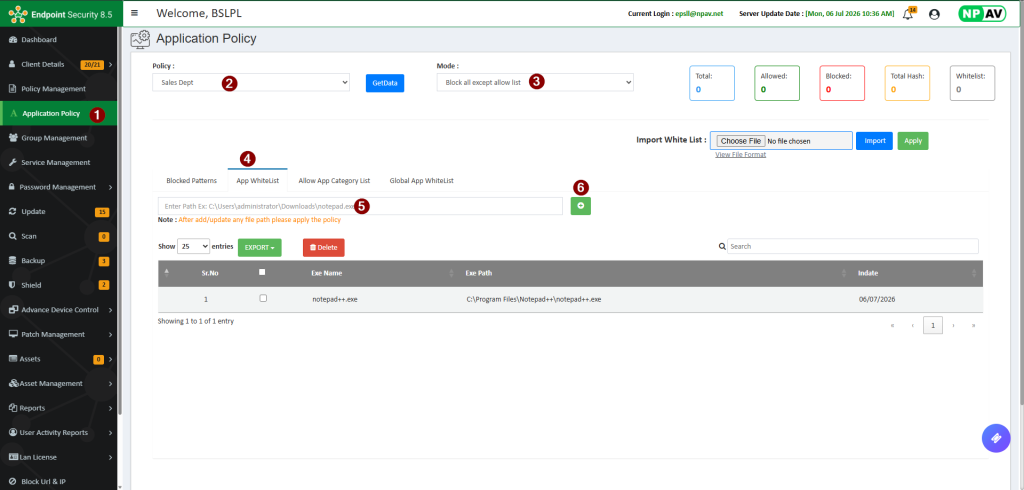
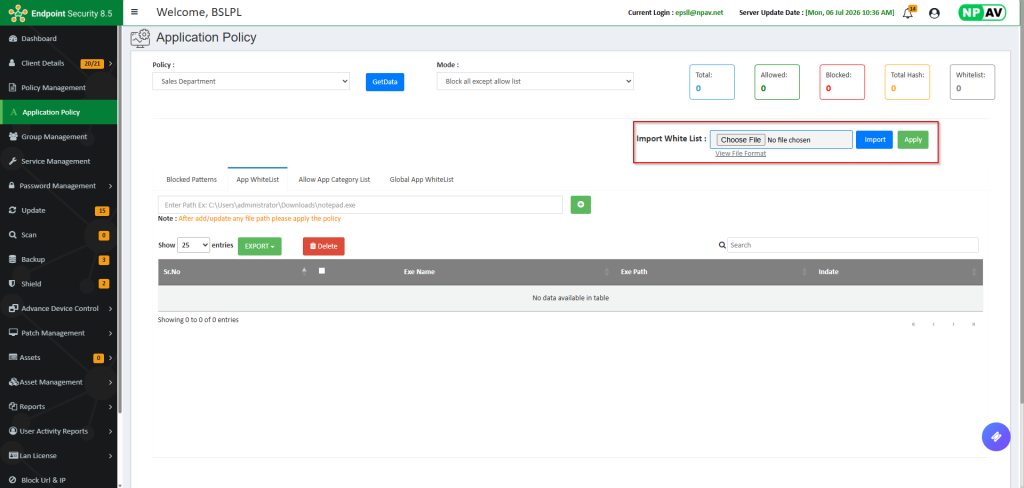
Users can whitelist multiple applications by importing a CSV or text file.
Step 9: Create and Import a Global Application Whitelist
To allow a predefined set of trusted applications:
- Create a Global Application Whitelist using whiteappdbc.exe.
- Generate the AppWListDB.csv file.
- Import the AppWListDB.csv file into Endpoint Security.
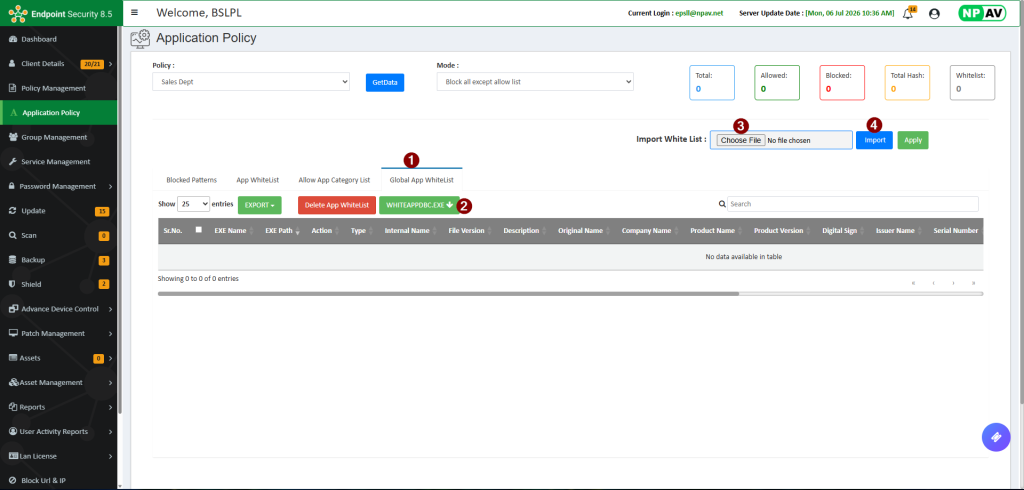
All applications included in the whitelist will be allowed for the selected Organization.
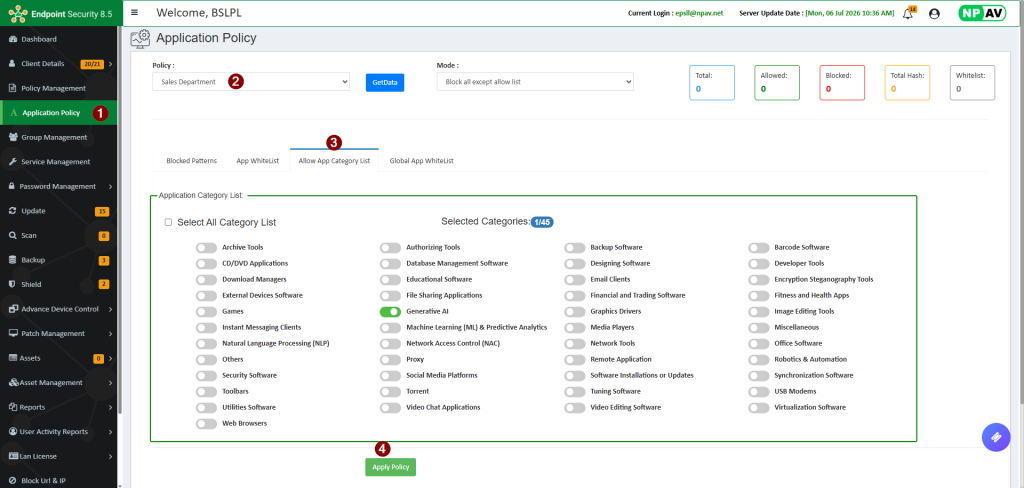
Step 10: Allow Applications by Category (Block All Except Allow List Mode)
To block all applications while allowing only selected application categories:
- Select Block All Except Allow List mode.
- Click Allow App Category List.
- Select the application categories that you want to allow.
- Click Apply Policy.
Step 11: View the Application Blocking Report
To view blocked application reports:
- Go to the Report tab.
- Select App Blocked Report.
- Select the required client IP address to view the report.
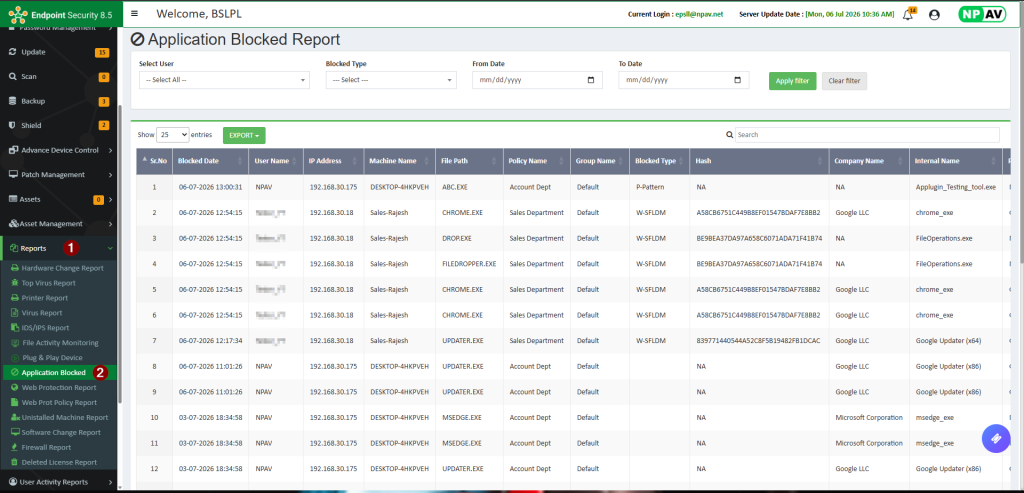
Blocked Types
| SFLDM | Block All Except Allow List mode |
| Pattern | Application blocked using a configured blocking pattern |
| Category | Blocked Category |
