Syslog Integration :
Security Information and Event Management (SIEM) technology gathers information about security alerts generated by network hardware and software components. This will help to push all the event logs from the EPS server to the syslog server. This enables systems and applications to send log messages to a centralized syslog server for streamlined management, analysis, and monitoring. By integrating Syslog, organizations can consolidate logs from multiple sources, gain insights into system events, troubleshoot issues efficiently, and enhance security posture through comprehensive log management and analysis.
The data formats supported are LEEF (Log Event Extended Format) and CEF (Common Event Format) which are the most common formats of Syslog and SIEM vendors.
Integration Advantage :
Event logs are sent to a Syslog tool for security and convenience:
- Security – Keep logs off-site in a secure location in your SIEM systems.
- Convenience – Store logs in a central location for easy access.
- Historical Data – For audits, Syslog server can store events and records for previous years as per the log retention policy
Configure Syslog :
To configure Syslog server follow the Procedure:
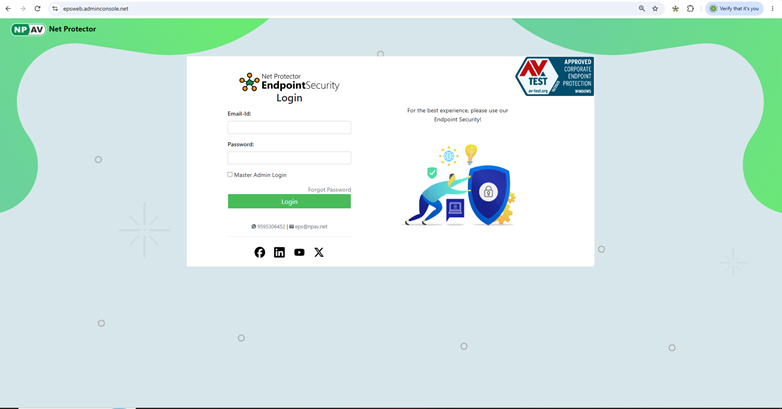
1.Login to eps web console with credentials
https://epsweb.adminconsole.net
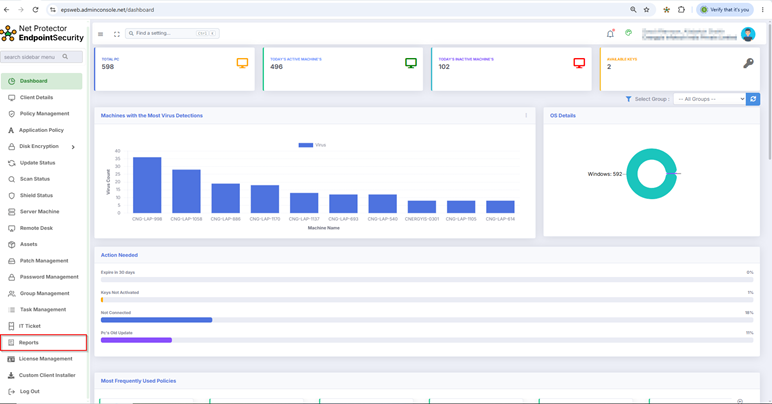
2. Go to reports Tab
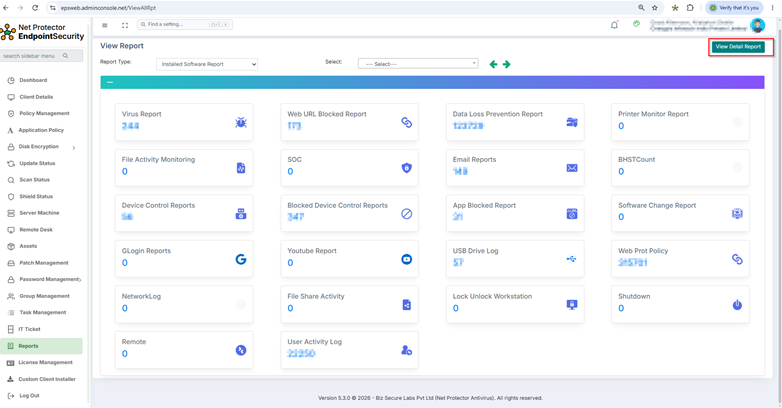
3. Click on view details Report
4. Click on profile icon and got to admin setting
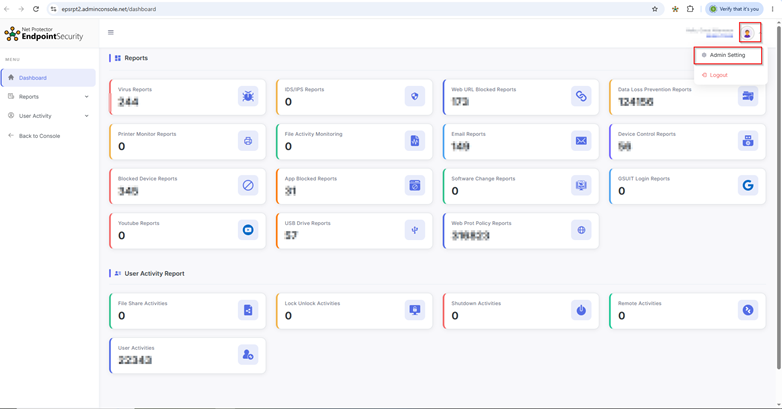
5.Click on SIEM syslog option and Enable SIEM syslog
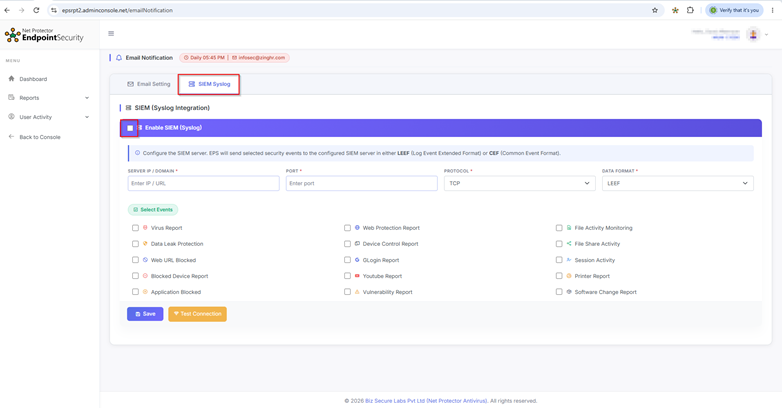
6. Configure the required options as per the table below
On this configuration page, configure the following syslog settings
| Setting | Description |
| Syslog Config | Enable or deactivate syslog log-sending feature |
| Syslog Server IP / Domain orHostName | Enter the IP / HostName for the Syslog server in the Syslog Server IP/URL text box. |
| Protocol | Select the required protocol from available options (UDP, TCP) to send the data. |
| Server Port | Enter the port number to communicate with the syslog server in the Port text box. |
| Syslog Data Format | Select the format for your Syslog formatting.The data formats supported are LEEF (Log Event Extended Format) and CEF (Common Event Format). |
7. Click on Save settings which are added.
8. Use the Test Connection button to ensure successful communication between the EPS Server machine and the syslog server.
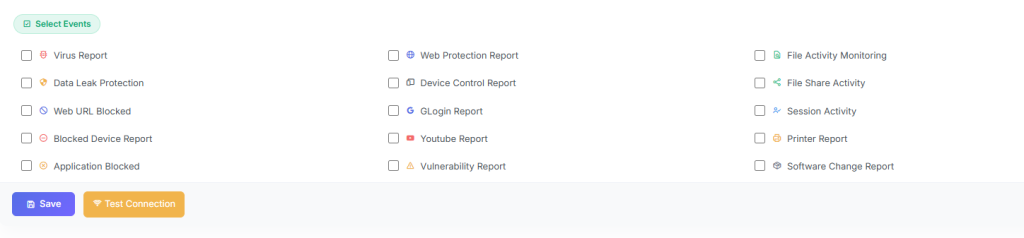
Select the Events for which you require logging to Syslog :
- Anti-malware scan and Virus Event
- Application Blocked
- File Activity Monitoring
- Data Leakage Events
- Vulnerability Report
- File Share Activity
- Session Activity
- Advanced Device control
- Web Protection Report
- Printer Reports
- Software Change Report
- Youtube Report
- GLogin Report
- Web URL Blocked