How to Claim Reward Amount (JAS Quarter) Through Dealer Portal App
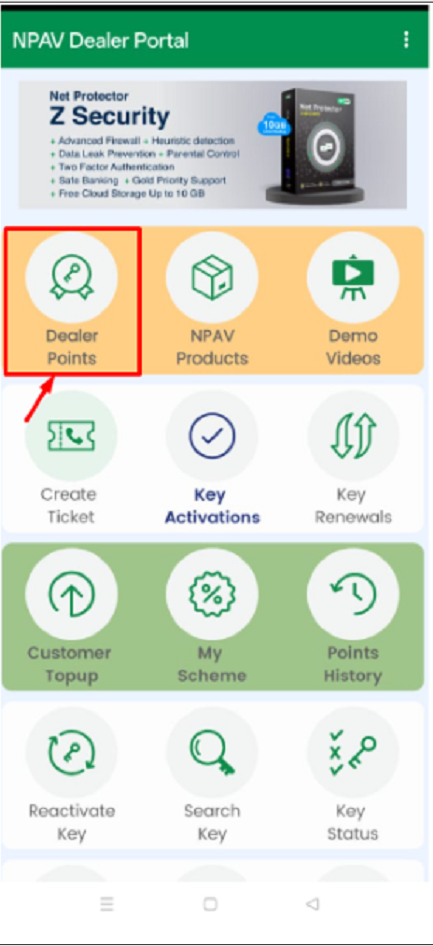
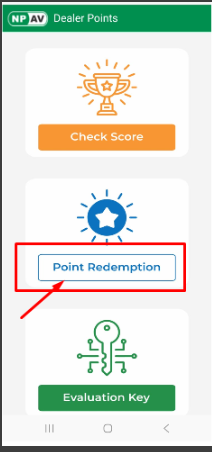
- Open the Dealer Portal App and tap Dealer Points.
- Tap Point Redemption.
- Create and upload your Sales Commission Invoice, then tap Continue.
- Invoice Value: Claim Amount + 18% IGST
- Description: Sales Commission A/C (against Q2 quarterly activation scheme)
- HSN/SAC: 996111
- Bill To: Biz Secure Labs Pvt. Ltd., Pune, Maharashtra
- GSTIN: 27AADCB6188L1Z6
- State: Maharashtra (Code: 27)
- Note: If you do not have a GST number, you may upload the invoice without GST.
- Enter your bank account details correctly to receive the RTGS reward amount.
Note: If you do not have a GST number, you may upload the invoice without GST.
Step 1: Open the Dealer Portal App and click on the Dealer Points Feature
Step 2: Click on the Point Redemption Option
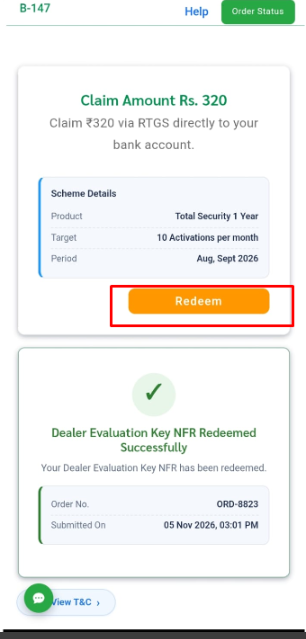
Step 3: Click on the Redeem Button
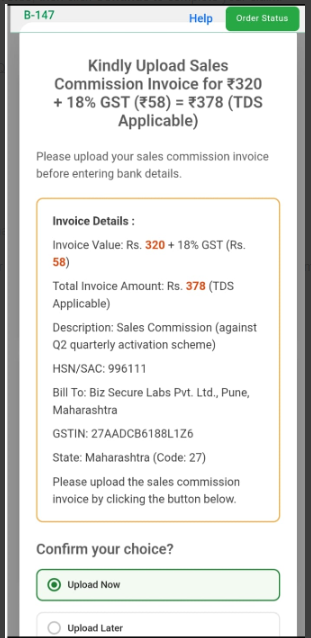
Step 4: Upload Sales Commission Invoice
Kindly create and upload your Sales Commission Invoice, then click Continue to complete your claim.
Invoice Details:
- Invoice Value: Claim Amount + 18% IGST
- Description: Sales Commission A/C (against Q2 quarterly activation scheme)
- HSN/SAC: 996111
Bill To:
- Biz Secure Labs Pvt. Ltd.
- Pune, Maharashtra
- GSTIN: 27AADCB6188L1Z6
- State: Maharashtra (Code: 27)
Note: If you do not have a GST number, you may generate and upload the invoice without GST.
Click the Upload Invoice button below to upload your Sales Commission Invoice and proceed with your claim.
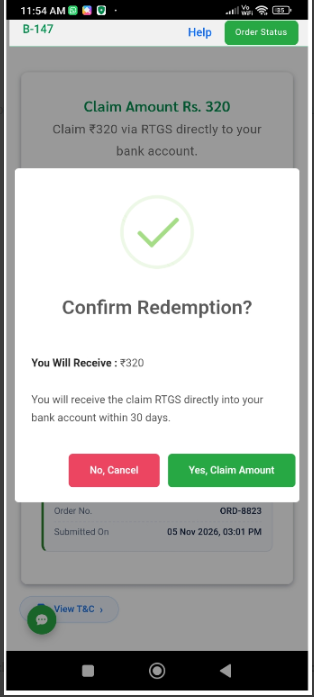
5. Confirm Your Claim: Displays the claim redemption confirmation message, showing the claim amount of Rs 320 and informing the user that the RTGS amount will be credited to their bank account within 30 days.
Step 6: Enter your bank details to receive the RTGS redemption amount in your bank account.
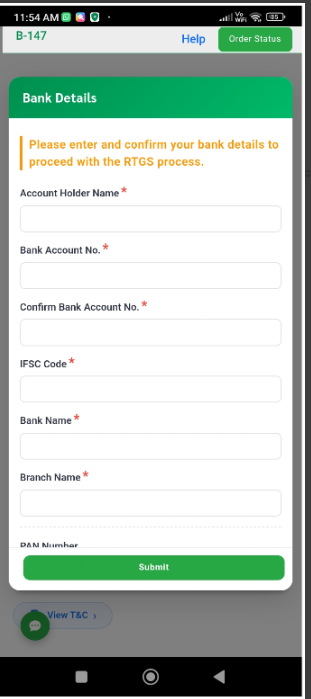
Step 7:
After entering all the bank details, tap the Submit button.
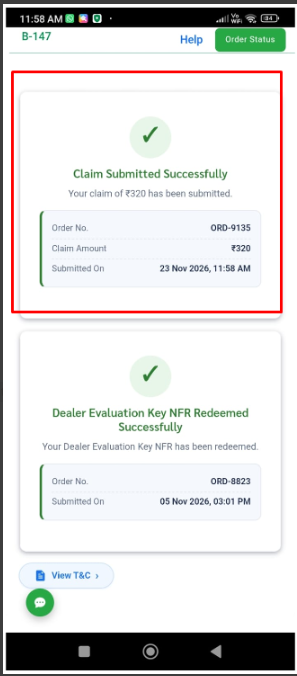
Redemption Successful!
- Claim RTGS: Rs 320
- Status: Claim submitted successfully.
- Confirmation: Redemption completed successfully.
- Button: OK
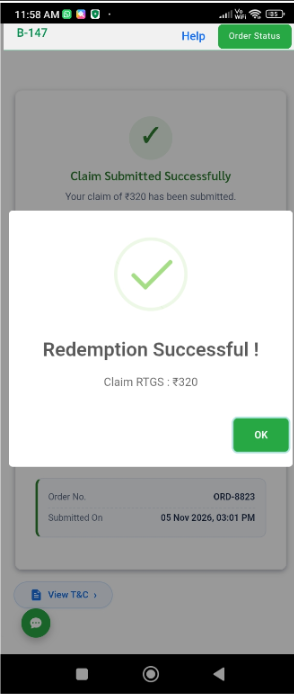
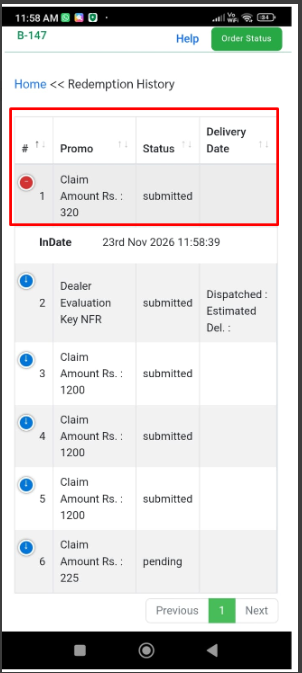
Step 8 : Click on the Order Status option to view the claim amount and its current status.