
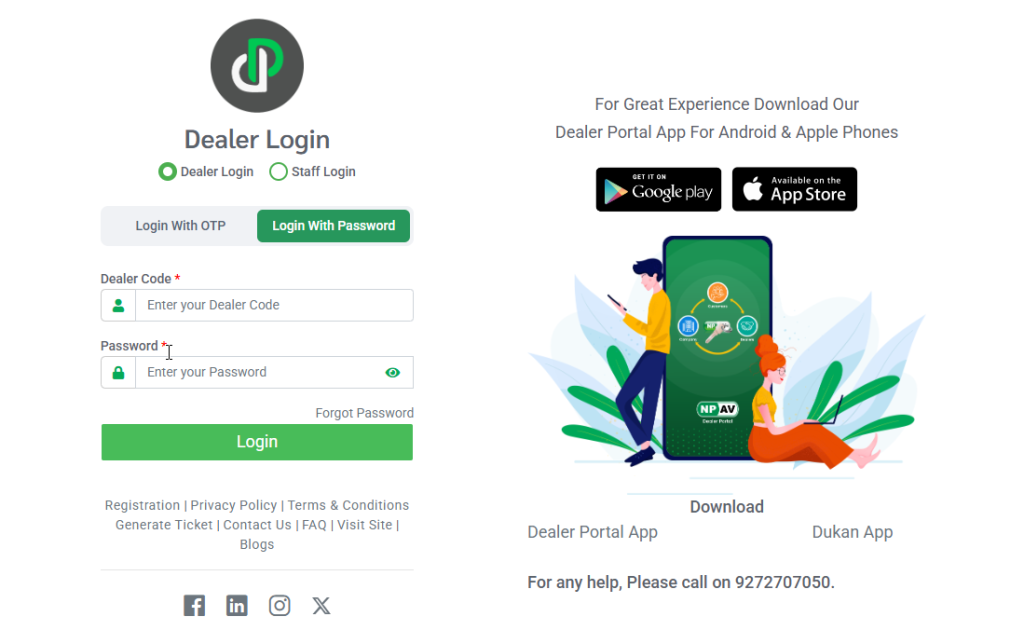
Step:-1
- Login to the Dealer Portal
- Open the Dealer Portal login page.
- Enter your Dealer Code and Password.
- Click Login.
Login URL: https://portal2.npav.net/login
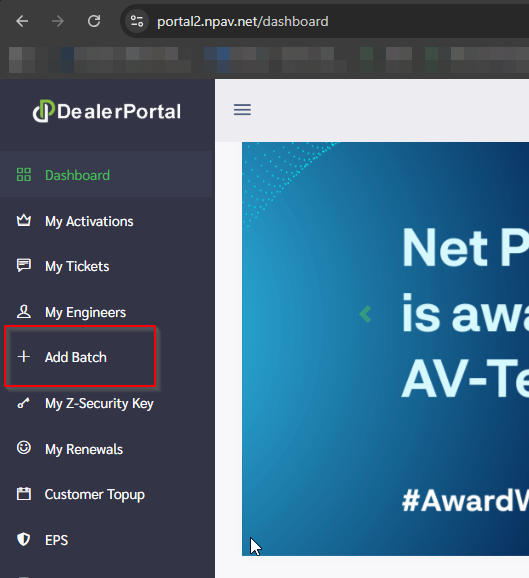
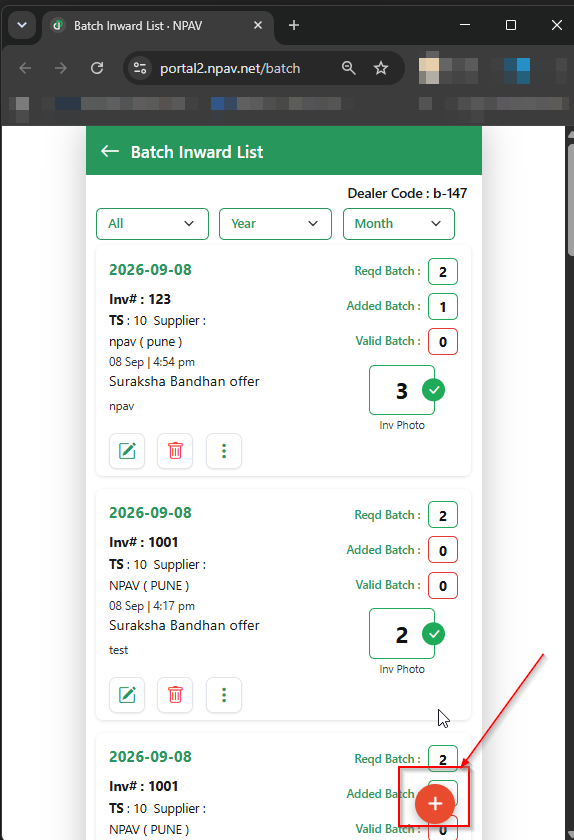
Step:-2
- After logging in, click Add Batch.
- Click the + (Plus) icon.
- Show Add Batch Inward form.
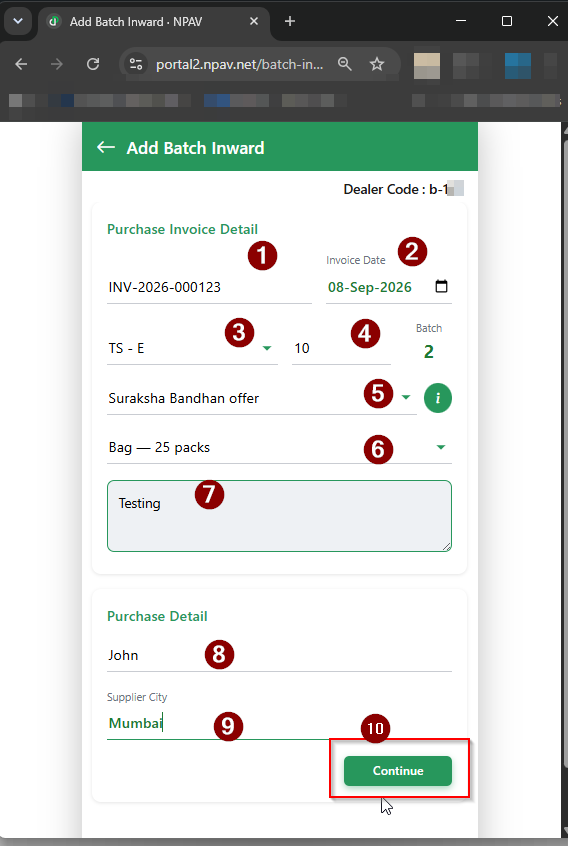
Step:-3
- Enter Batch and Purchase Details
- Verify the Invoice Details.
- Select the required Product.
- Enter the Quantity and Batch Number.
- Select surakasha Bandhan offer
- Enter Remarks, if required.
- Enter the Purchase Details and Supplier City.
- Click Continue.
Step:-4
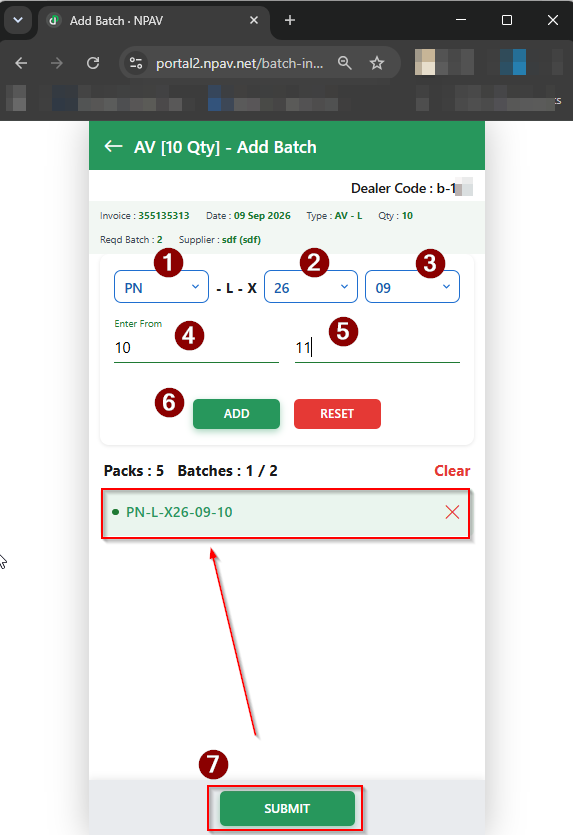
- Add Serial Number Details
- Select the Batch Details according to the invoice.
- Enter the Serial Number Range (From–To).
- Click Add.
- Review the details and click Submit to save the batch.
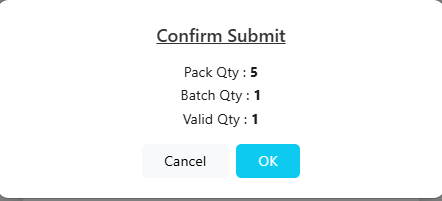
- After Adding and click on Submit then Show popup for and asking confirm Add batch
- Click on Ok button
Step:-5
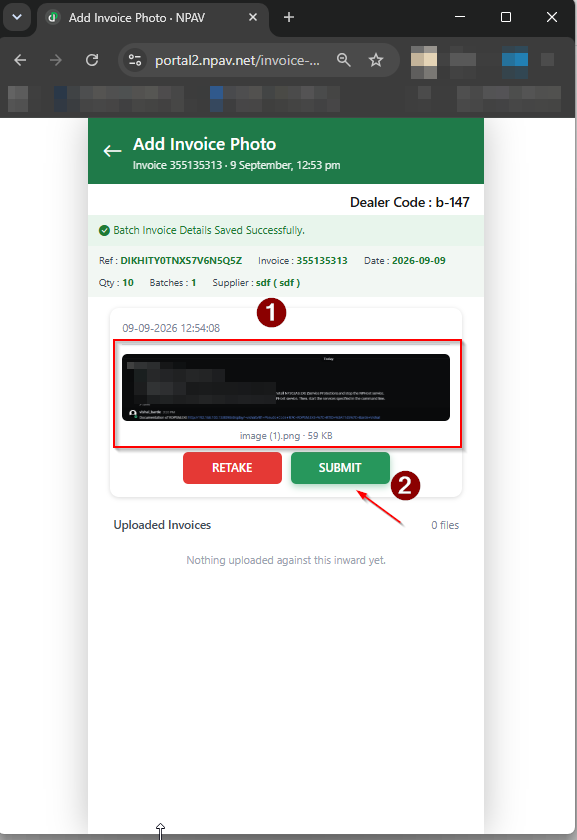
1.Add Invoice Photo
Tap to take a photo, or choose an image / PDF
Step:-6
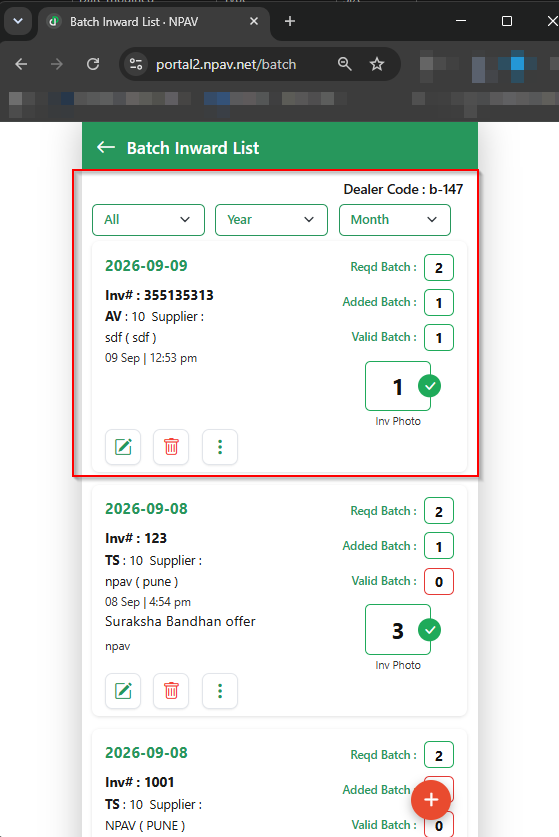
- View and Manage Batch Details.
After submitting the batch, you can: • View the Batch Inward Details. • Check the Batch Status. • Upload the Invoice Photo. • Edit the batch details, if required. • Delete the batch, if required.
Important Note Please verify the invoice, product, quantity, batch number, purchase details, and serial number range carefully before clicking Submit
