Step 1 : Download PIO T3 from the Google Play Store to manage dealer operations, batch details, invoices, and product activations.
Play Store link:
https://play.google.com/store/apps/details?id=com.krypton.pio&hl=en_IN
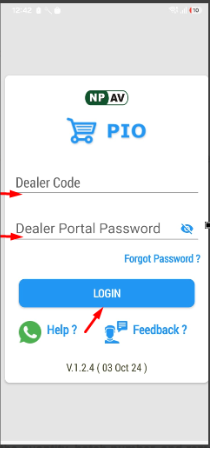
Step 2 : Enter a valid Dealer Code and Password, and click the Login button to access the application.
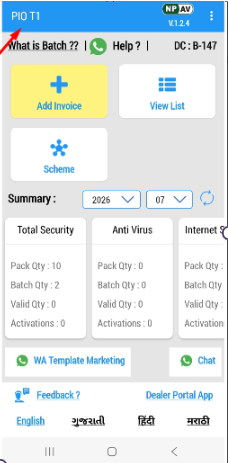
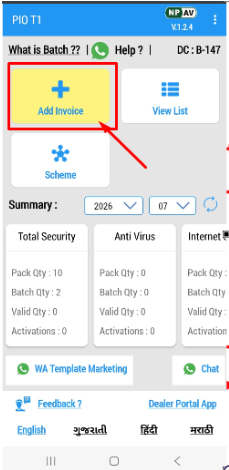
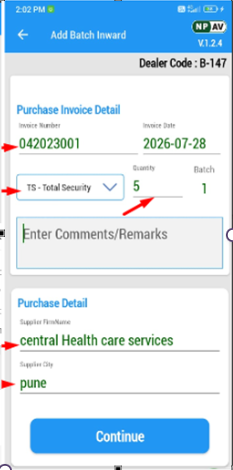
Step 3 : Click the “Add Invoice” button, Verify the invoice details, select the product, enter the quantity, batch number, and remarks, then click the Continue button to proceed
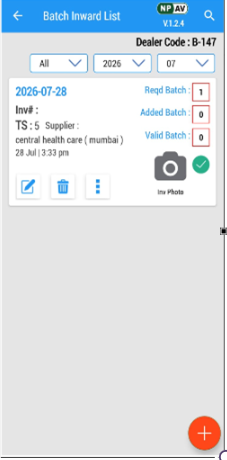
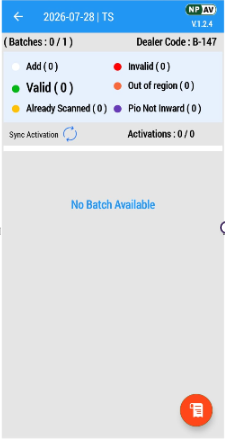
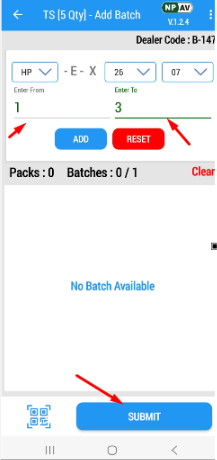
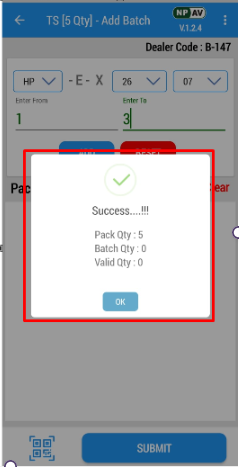
Step 4: After Click on Continue button, select the product and batch details, enter the serial number range (From–To), click Add, and then tap Submit to save the batch.
Step 5 : View the batch inward details, verify the batch status, upload the invoice photo, and edit or delete the batch if required.