
Disk Encryption feature protects USB pen drives and external hard drives by encrypting them when they are connected to an EPS-managed computer. When the Disk Encryption policy is enabled in EPS, the connected USB pen drive or external hard drive is automatically encrypted. The encrypted device can only be accessed on computers where the Disk Encryption feature is enabled through EPS. If the encrypted USB pen drive or external hard drive is connected to A computer outside the EPS network, or An EPS-managed computer where the Disk Encryption feature is disabled, the device remains encrypted and its data cannot be accessed. This feature helps prevent unauthorized access to data stored on USB pen drives and external hard drives outside the EPS-managed environment.
Steps to Configure the Disk Encryption Feature
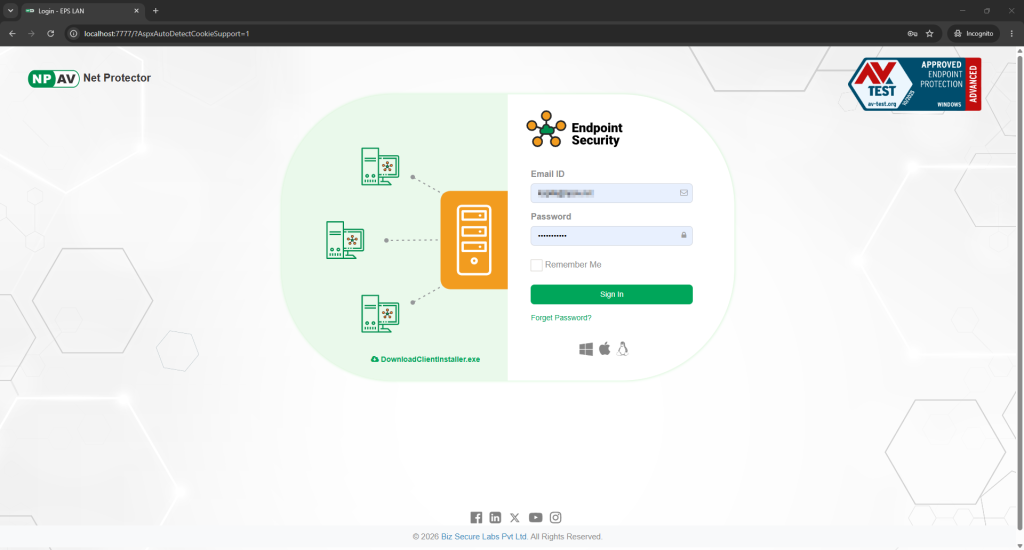
Log in to the EPS Intranet Console.
2.Navigate to Policy Management.
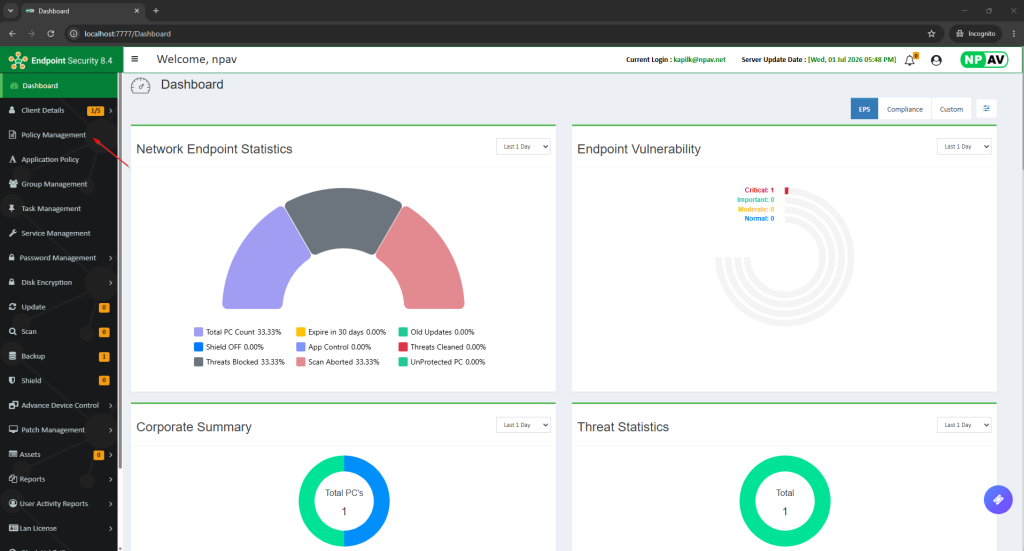
3.Edit the required policy.

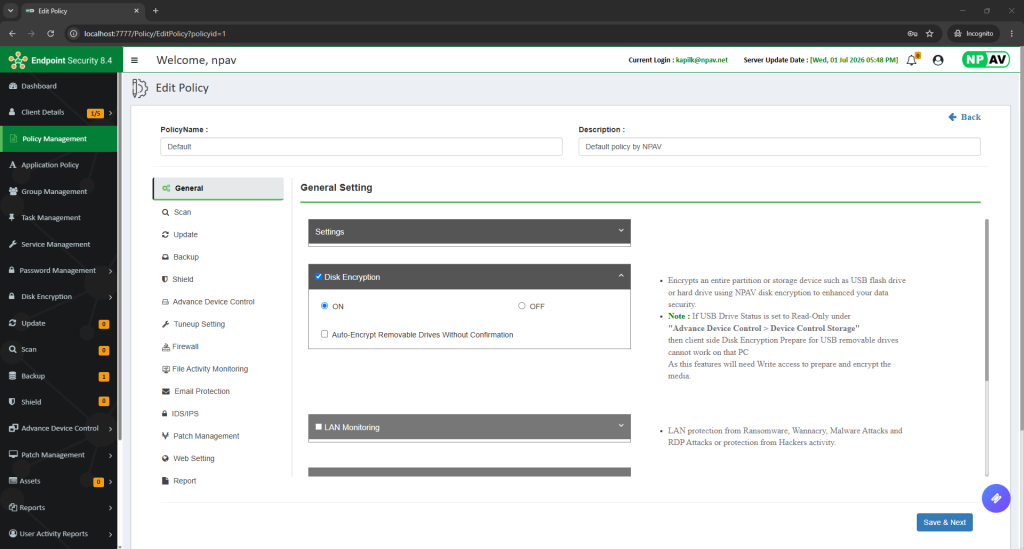
4.Go to the Disk Encryption tab & Enable the Removable Media Encryption feature and save the policy.
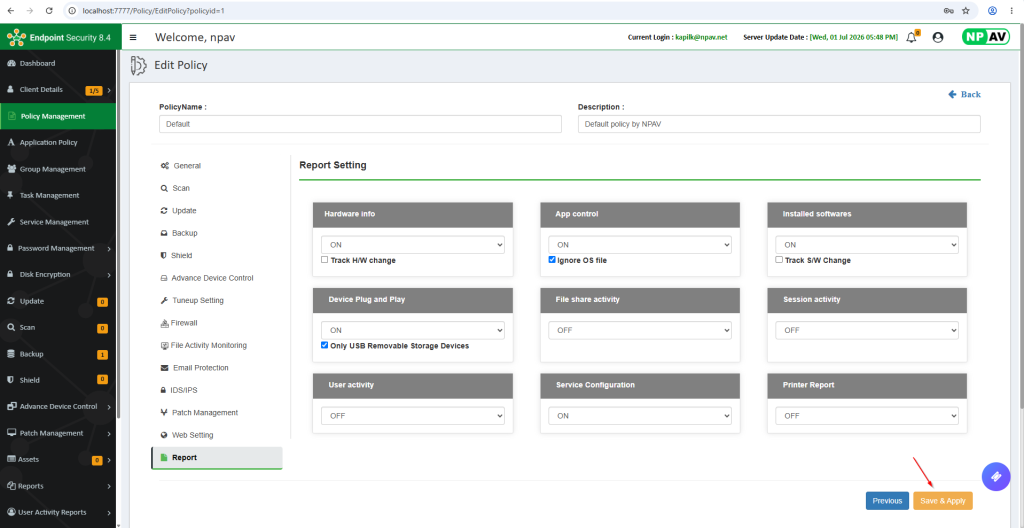
5.Apply the policy to the client machine.
6.Insert a USB pen drive into the client machine.
7.When the encryption prompt appears, click Yes to encrypt the USB pen drive.
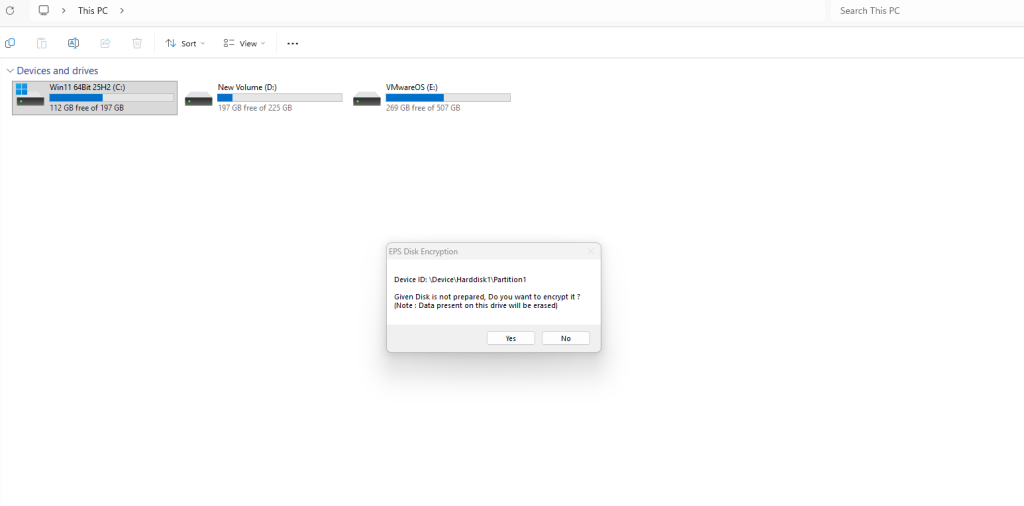
8.Wait 2–3 minutes for the encryption process to complete. Once the encryption is complete, the removable drive is fully encrypted and cannot be accessed on machines where the Disk Encryption (Removable Media Encryption) feature is not enabled.
