NPAV EPS provides centralized encryption management with support for Full Disk Encryption, File and Folder Encryption, Removable Media Encryption, and Microsoft BitLocker, The solution enables centralized monitoring of encryption status, comprehensive reporting, secure storage of encryption recovery keys with multiple recovery options, and supports automatic encryption of removable storage devices while preventing data from being copied to unencrypted removable media.
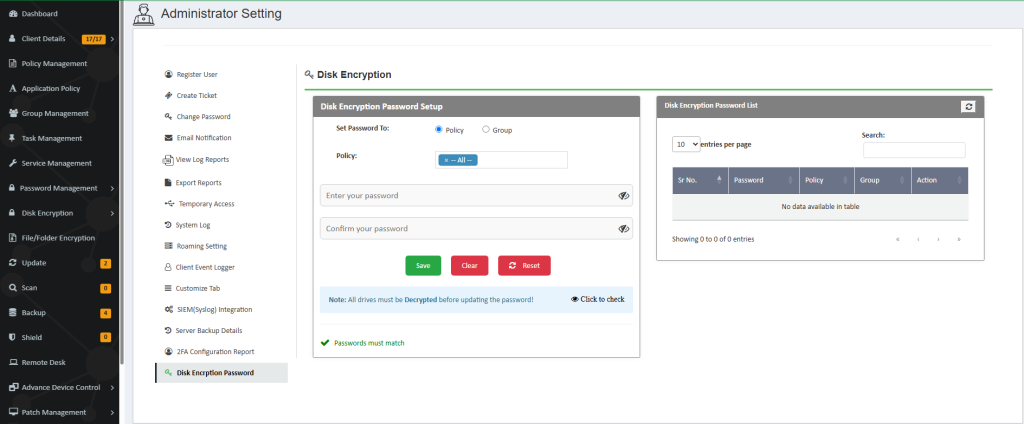
Disk Encryption Password Configuration
The Disk Encryption Password feature allows an administrator to configure a password for users associated with a specific Policy or Group.
Select Policy or Group
Under Set Password To, the administrator can choose one of the following:
- Policy – Set the disk encryption password for users assigned to the selected policy.
- Group – Set the disk encryption password for users belonging to the selected group.
Note: The administrator can select one Policy or one Group at a time. Alternatively, select All to set the same password for all Policies or Groups.
Password Delivery to Users
Once the password is successfully configured, the password is associated with the selected Policy or Group.
The configured disk encryption password is then provided to the users who are covered by that selected Policy or Group.
Example:
If the administrator selects Group A and configures a disk encryption password, the configured password will apply to the users who are members of Group A.
Similarly, if the administrator selects Policy A, the password will apply to users who are assigned to Policy A.
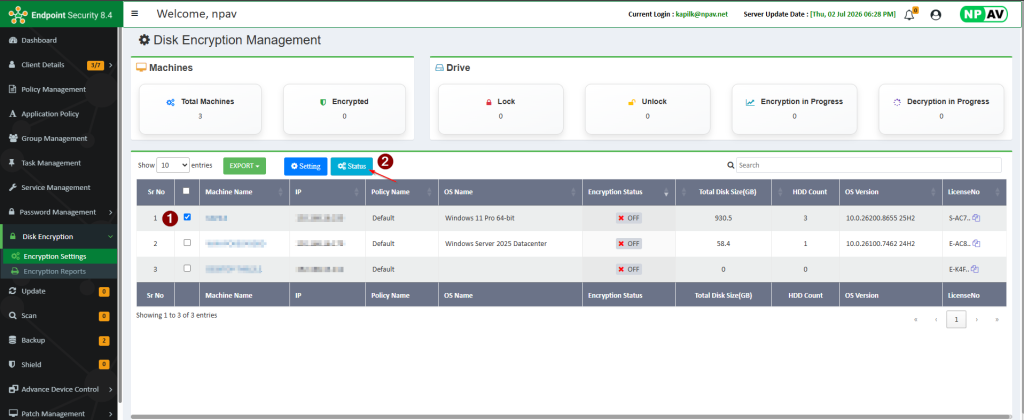
Retrieving Drive Details from the Console
- Log in to the console.
- Navigate to the Disk Encryption menu.
- Select the client machine
- Click the status button to fetch the latest drive information
How to apply Encrypt drive setting
- Navigate to the Disk Encryption Menu
- Select The client machine
- Click on setting button
- Select the drive you intend to encrypt, and then choose your preferred encryption method.
- Use the toggle switch to enable encryption. Enabling the toggle will initiate drive encryption
- Click on Apply Setting button
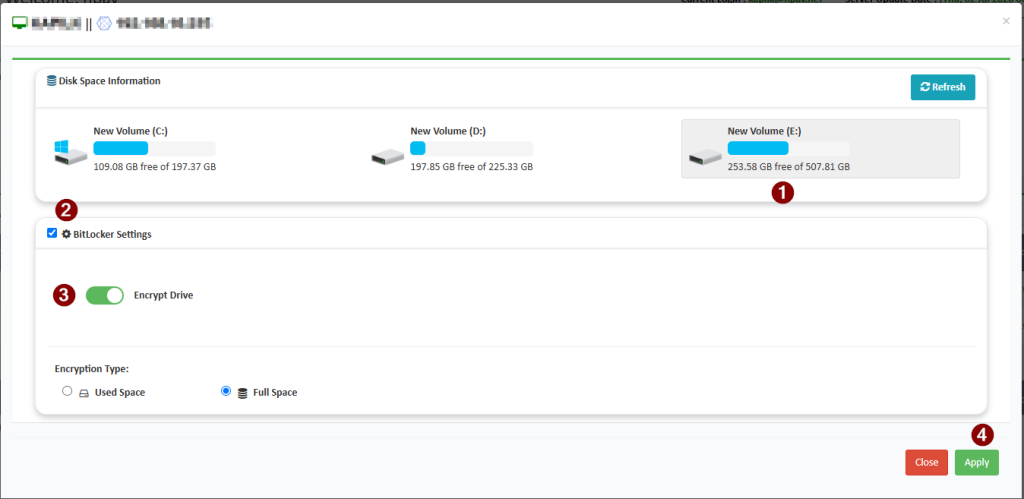
Encryption Type:
Used Space:”Encrypt used disk space only” is a BitLocker encryption method that focuses on speed by encrypting only the portions of a drive that currently contain data. Unlike full disk encryption, it doesn’t touch the empty sectors of the drive.
Full Space: This type of encryption encrypts the entire storage device (e.g., hard drive, SSD) or a complete volume/partition on that device. This mean that all data on the disk, including the operating system, applications, user files, temporary files, and even “free space” (which might contain remnants of deleted files), is encrypted.
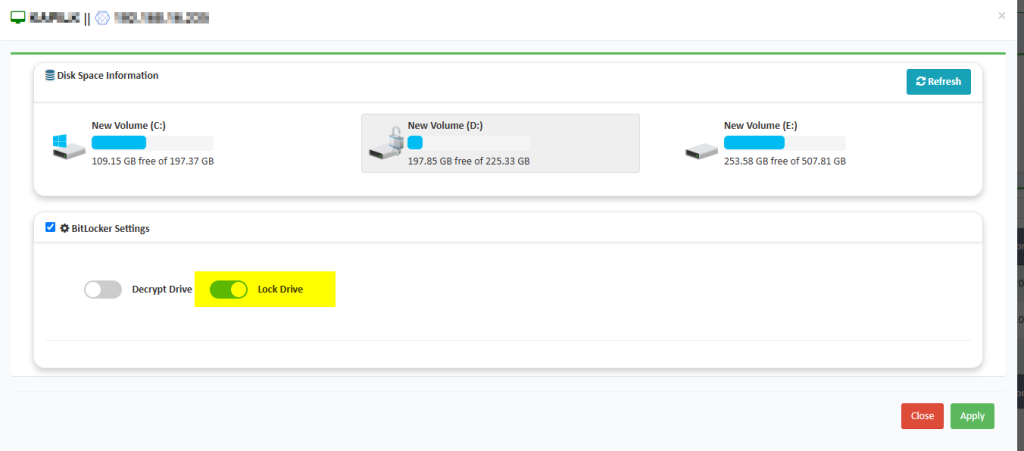
Lock Encrypted drive
- Navigate to disk encryption menu bar
- Select The client machine
- Click on Setting button
- Select the encrypted drive and setting checkbox
- Use the toggle switch to lock drive
- Click on Apply Setting button
Unlock Encrypted drive
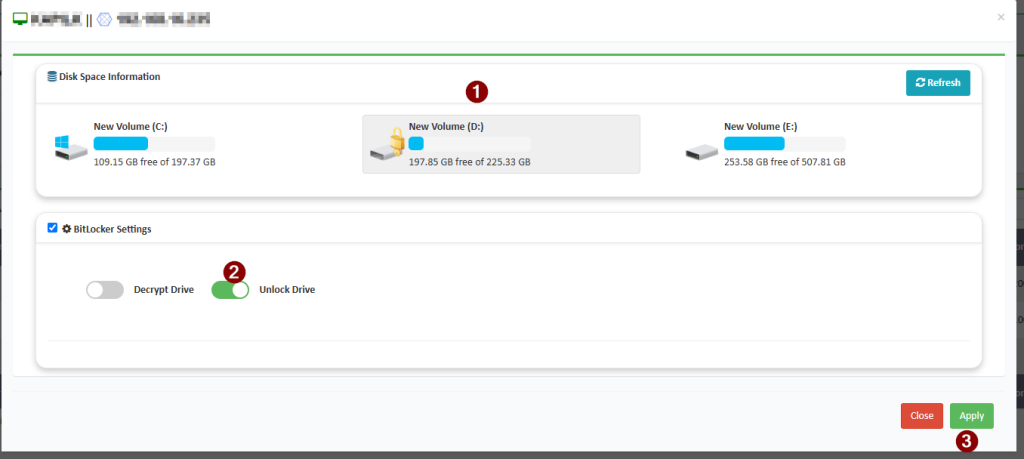
- Navigate to disk encryption menu bar
- Select The client machine
- Click on Setting button
- Select the encrypted drive and setting checkbox
- Use the toggle switch to lock drive
- Click on Apply Setting button
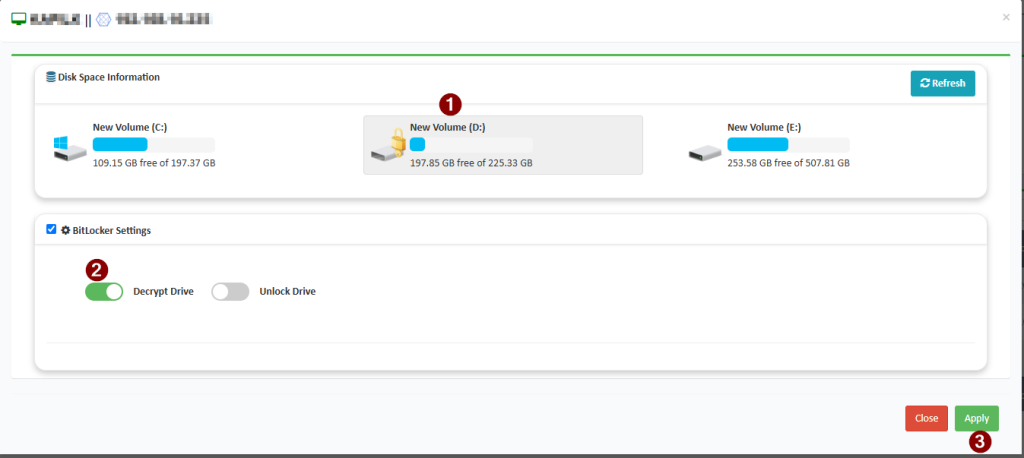
How to apply Decrypt drive setting
- Navigate to the Disk Encryption Menu
- Select The client machine
- Click on setting button
- Use the toggle switch to enable decryption. Enabling the toggle will initiate drive decryption
- Click on Apply Setting button