Patch Management is a critical feature that delivers essential security updates, performance improvements, and bug fixes to ensure a stable, secure, and reliable computing environment. It helps protect endpoints by addressing known vulnerabilities, improving system performance, and keeping Windows devices up to date.
Administrators can use the Patch Management module to identify, review, and deploy Windows OS, Windows application, and third-party application updates from a centralized console.
How to Manage Patches
Follow these steps to manage and deploy patches using the Patch Management module.
Step 1: Accessing the Patch Management Dashboard
Navigate to the EDR Console and click on the Patch Management tab.
Step 2: Patch Compliance by OS Version
Open the Patch Compliance by OS Version tab.
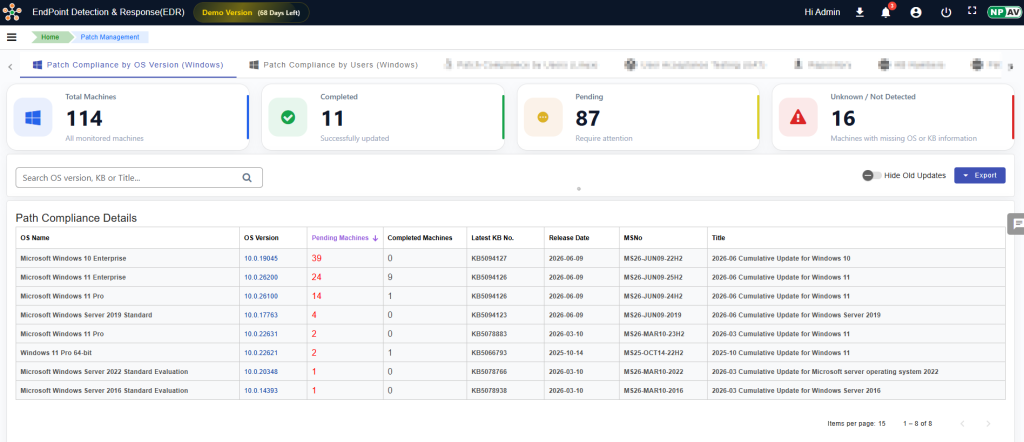
• Select the required OS Version
• Click on the Pending Machine Count to view machines with pending updates
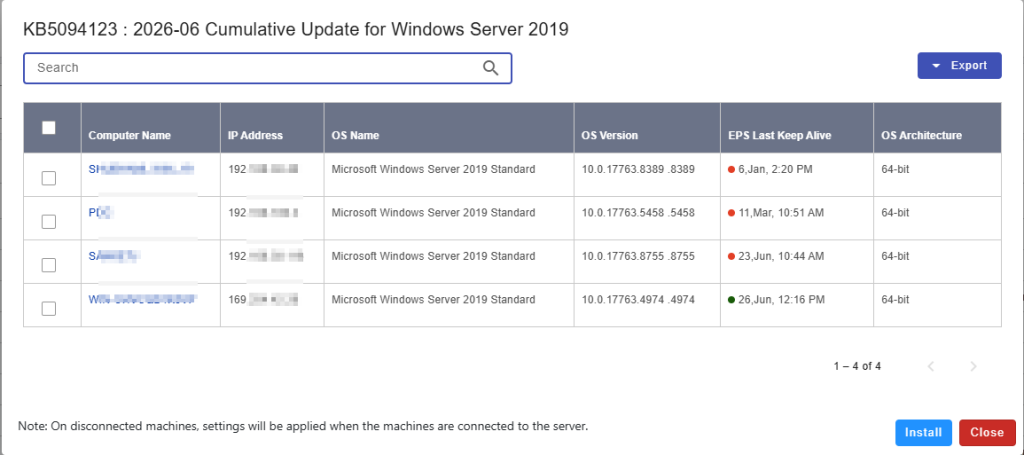
• Select the required machine(s) and click the Install button to deploy the patches
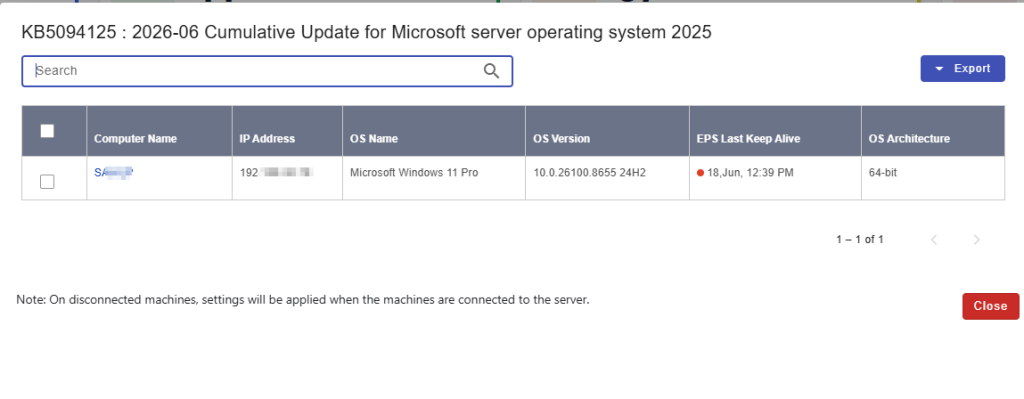
• To verify the installation status, click on the Completed Machine Count to view machines where patches have been successfully installed
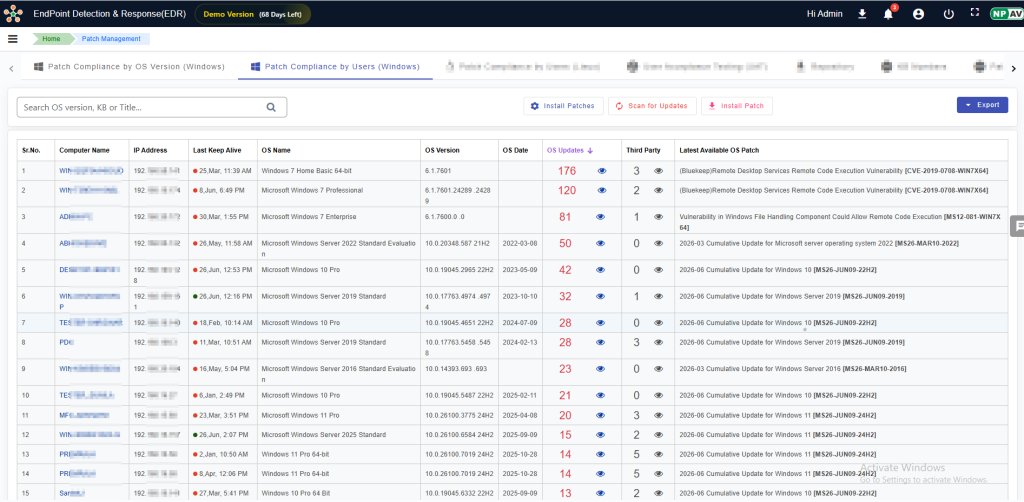
Step 3: Patch Compliance by User
Open the Patch Compliance by User tab to manage patches for individual users or user groups. Select the desired user, review the available updates, and deploy the required patches to the endpoints assigned to that user.
Step 4: Overview of Available Updates
The dashboard provides a comprehensive overview of available updates, categorized as:
- Total OS Updates
- Total Windows Apps Updates
- Total Third-Party Apps Updates
Step 5: Viewing Client Machine Update Details
From the client machine list, select a specific client and click the Eye icon next to OS Updates, Windows App Updates, or Third-Party App Updates to view detailed information.
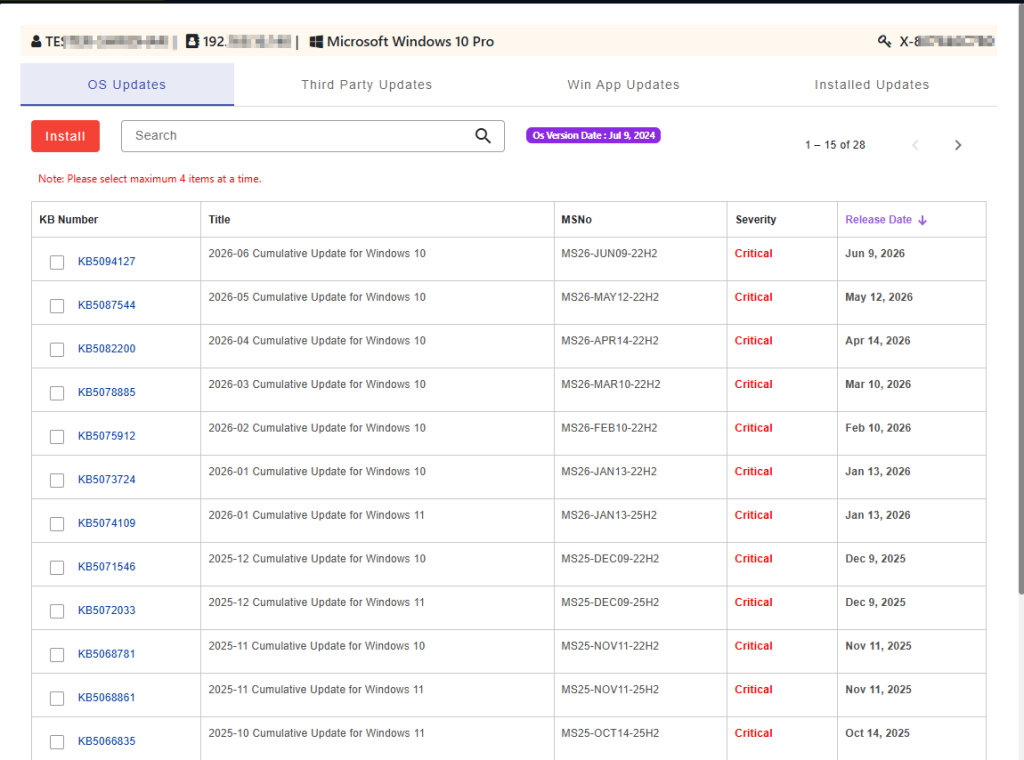
Step 6: Reviewing OS Update Details
This page displays the Knowledge Base (KB) article numbers and descriptions for each available OS update, allowing administrators to selectively install only the updates required for their organization.
Step 7: Initiating Update Installation
Select the required updates and click the Install button to begin the installation.
Recommendation: Install a maximum of four updates at a time to ensure system stability and minimize potential conflicts.
Step 8: Reviewing Installed Patch Report
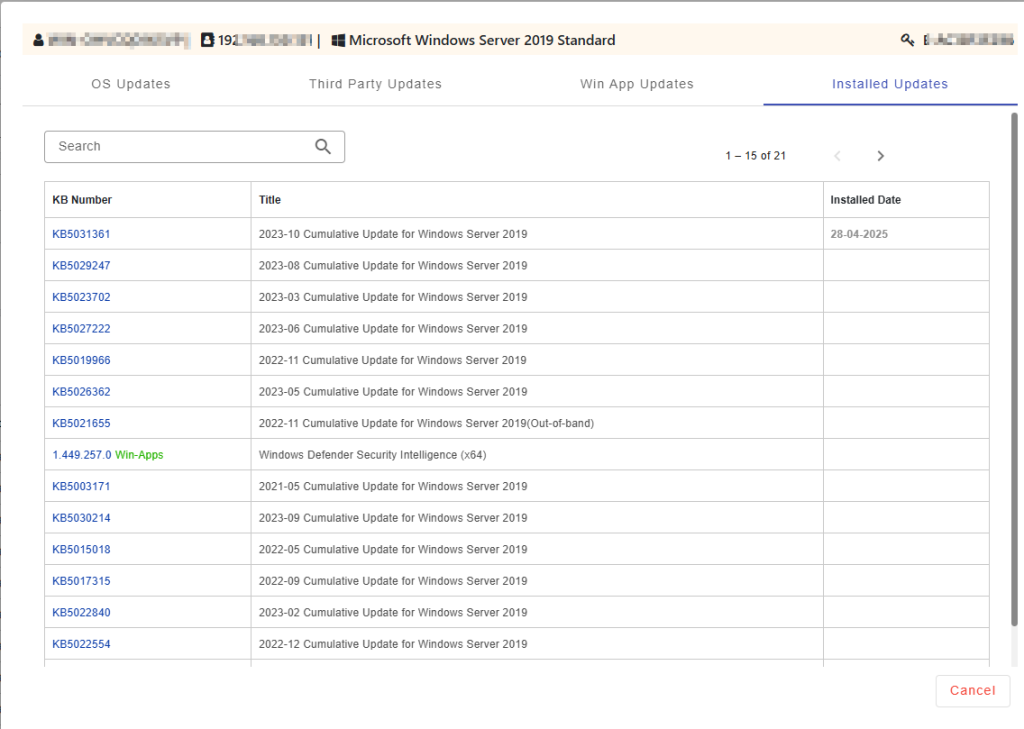
To view the installation history and status of deployed patches, navigate to the Installed Updates section. This report displays all successfully installed patches across managed endpoints.