
To install Krypton System Insights (KSI), follow these steps:
- Download the KSI installer
Open your web browser.
Go to : https://kryptoneb.com/ksi
Enter your dealer code in the field.
Click the green Download button.
Save the installer file (for example: KSInstaller_B-147_UKJOG.exe) to your computer.
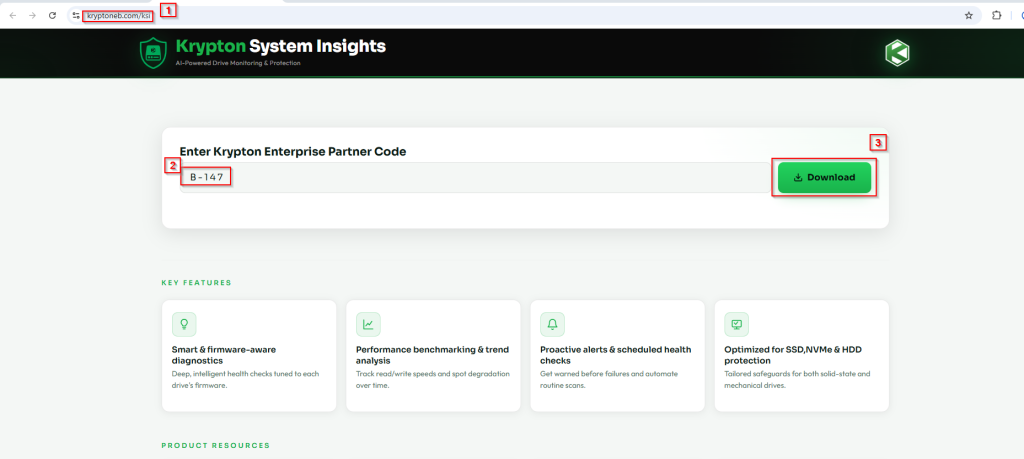
2 .Run the installer and install KSI
Double‑click the Krypton System Insights setup file you downloaded.
The setup will start – follow the on‑screen instructions.
When prompted, choose:
Sign In – if you already have an account
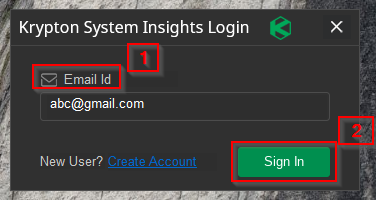
Create Account – if you are a new user.
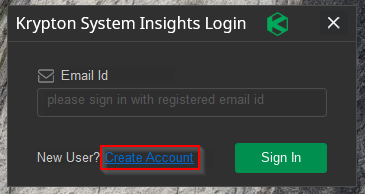
3. If you are a new user – create your account –
Select Create Account.
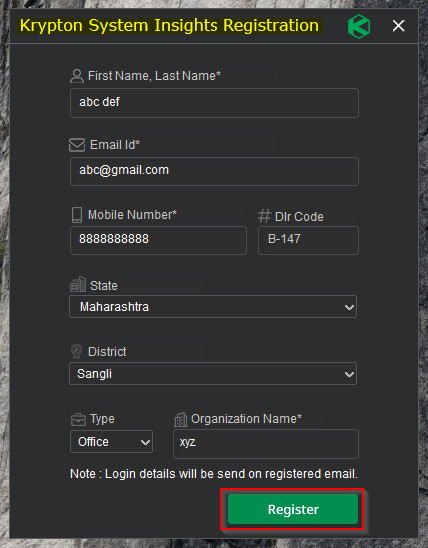
Fill in all mandatory details in the registration form.
Click the Register button.
After registration:
Login credentials will be automatically sent to your registered email address.
Go to your email, open the message, and verify your email address.
Note: You must complete registration, verify your email, and receive your login credentials before you can access and use Krypton System Insights.
4. Accept terms and optional monitoring
During installation, read and accept the Terms and Conditions to continue.
You will see an option to Enable Resource Spike Monitoring:
This is optional, but recommended for better monitoring and alerting.
Turn it On if you want KSI to track resource spikes.
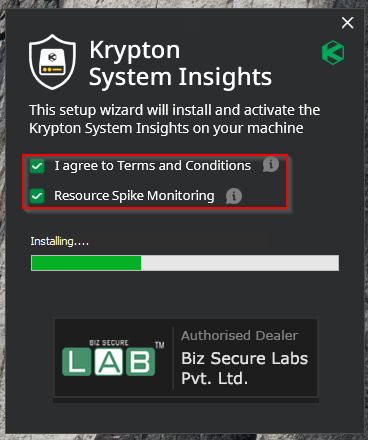
5. Launch Krypton System Insights.
After the setup is completed successfully, you will be redirected to the Krypton System Insights Login page at ksi.kryptoneb.com.
Login credentials will be sent to your registered email address.
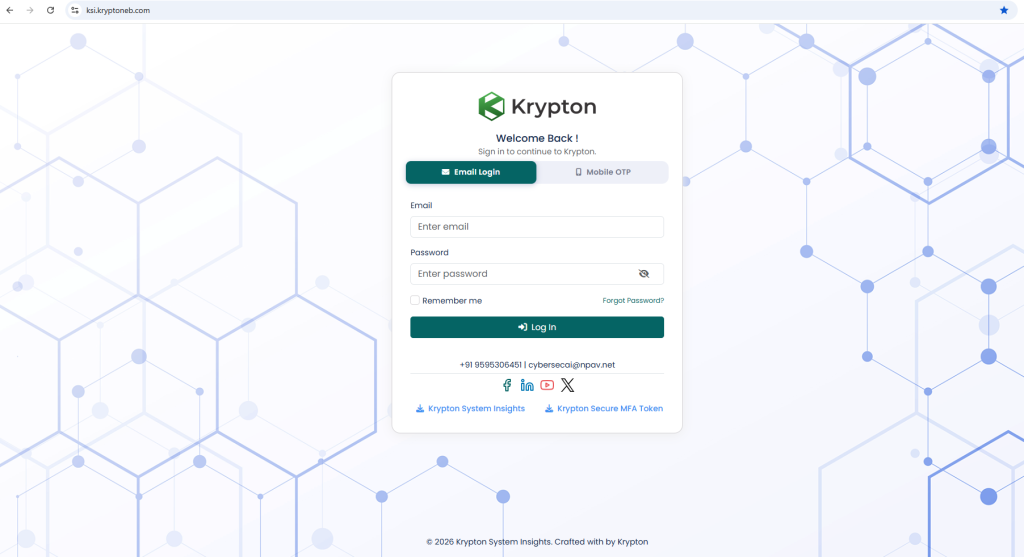
After logging in, select the Krypton System Insights card from the dashboard.
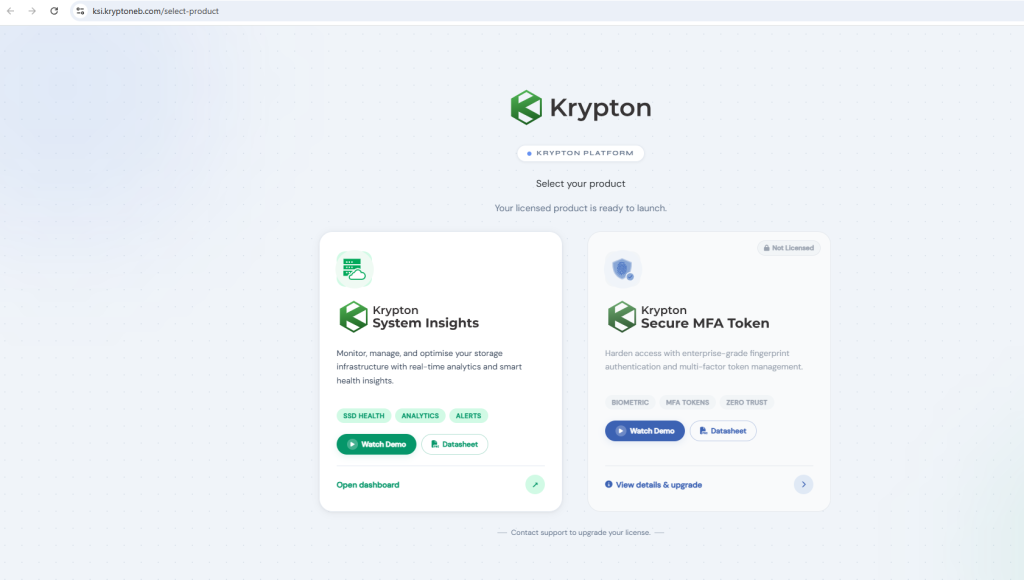
6. Change password
After being redirected to the Krypton System Insights window, a Change Password pop-up will appear.
Enter your new password, confirm the password, and then click Update to continue.
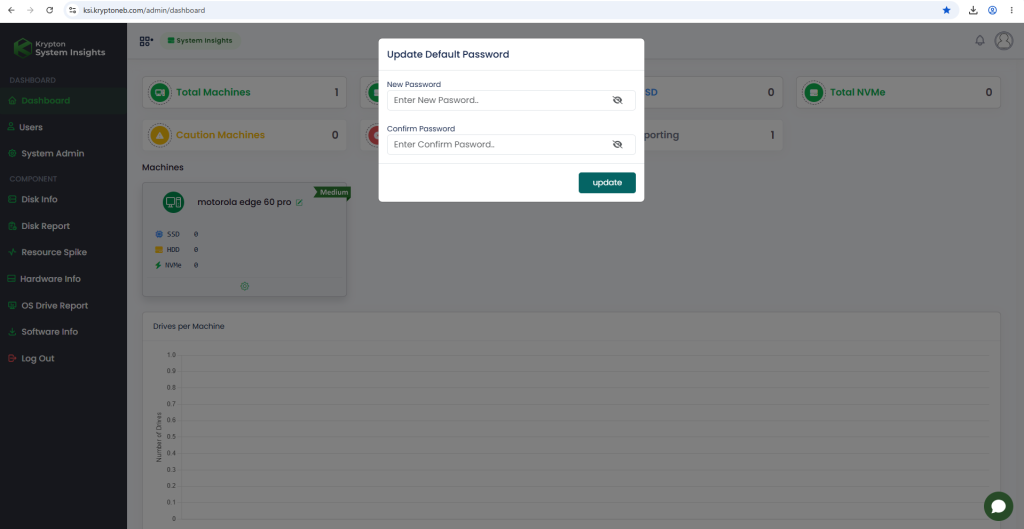
The registration process is now complete, and you are ready to start using Krypton System Insights.
