How to set alert in Krypton Storage Insight

How to set alert in Krypton Storage Insight –

  • Get Notified of risks early  to prevent downtime and data loss
  • Whenever the machine’s disk health declines or the temperature exceeds the set limit, you will receive an alert on your registered mobile number via WhatsApp or email.

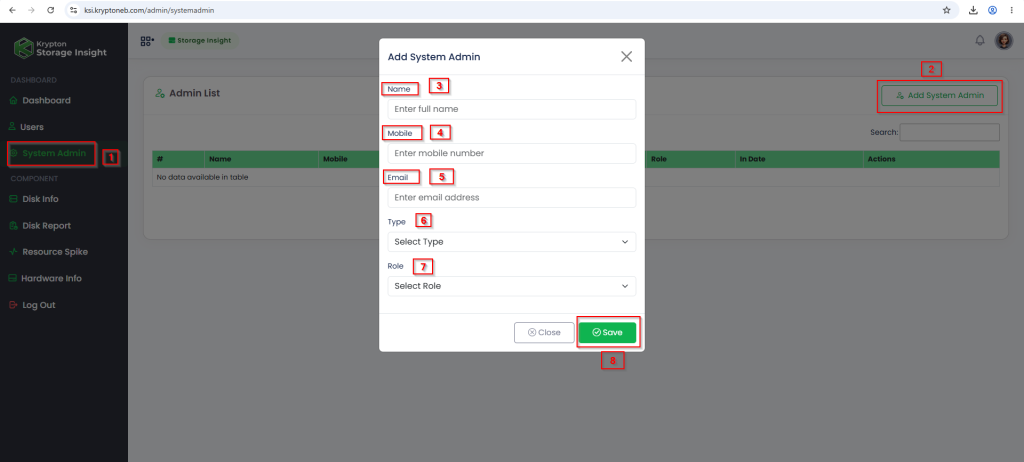
step 1 – Add System Admin – Enter full name , Mobile number , Email id , type and role 

step 2 – Click on Save button
This image has an empty alt attribute; its file name is image-19-1024x462.png

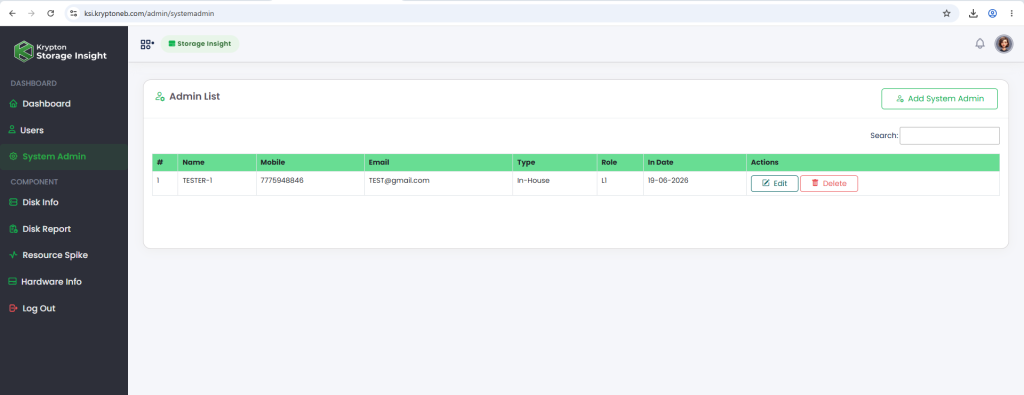
Step 3 – After saving the system administrator details, you can view them here.
This image has an empty alt attribute; its file name is image-20-1024x395.png

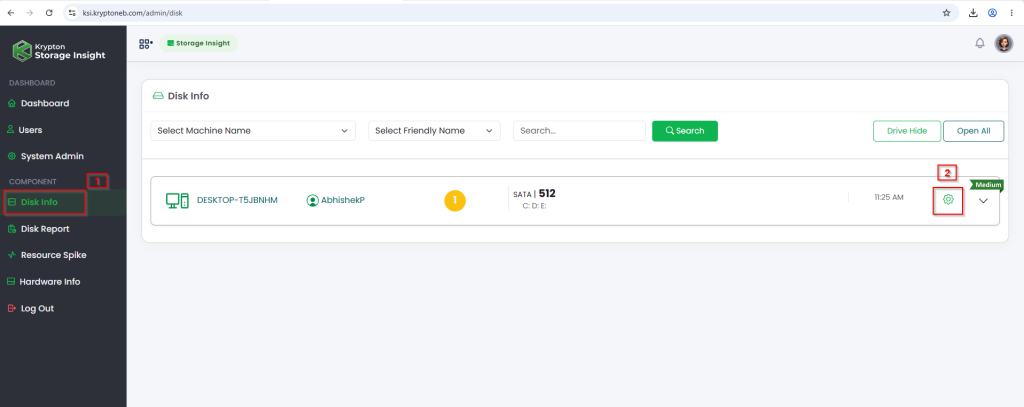
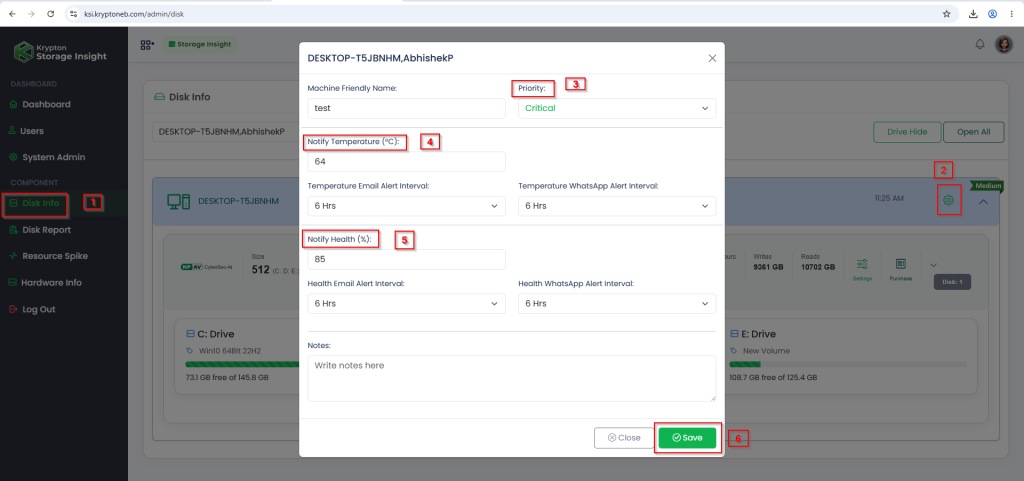
  • You can set an alert here for a particular machine.
This image has an empty alt attribute; its file name is image-21-1024x407.png

Select priority always Critical or High
This image has an empty alt attribute; its file name is image-22-1024x481.png

  • You can set an alert here for a particular Disk.
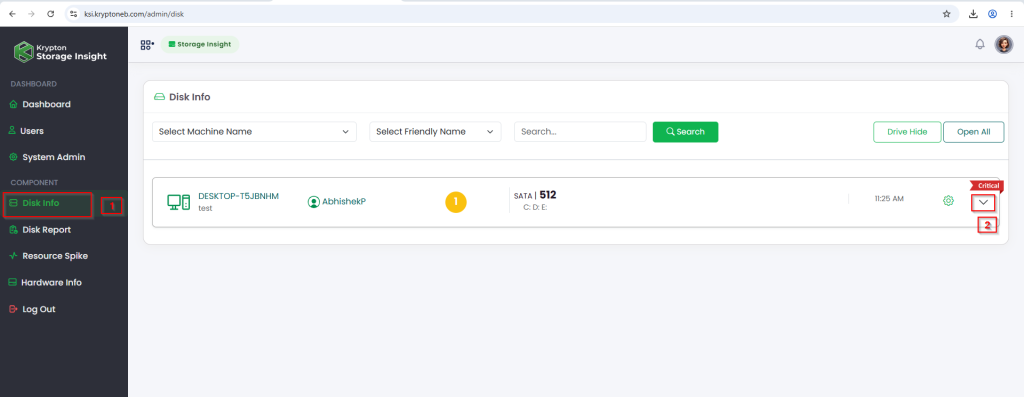
This image has an empty alt attribute; its file name is image-23-1024x397.png

Select priority always  Critical or High
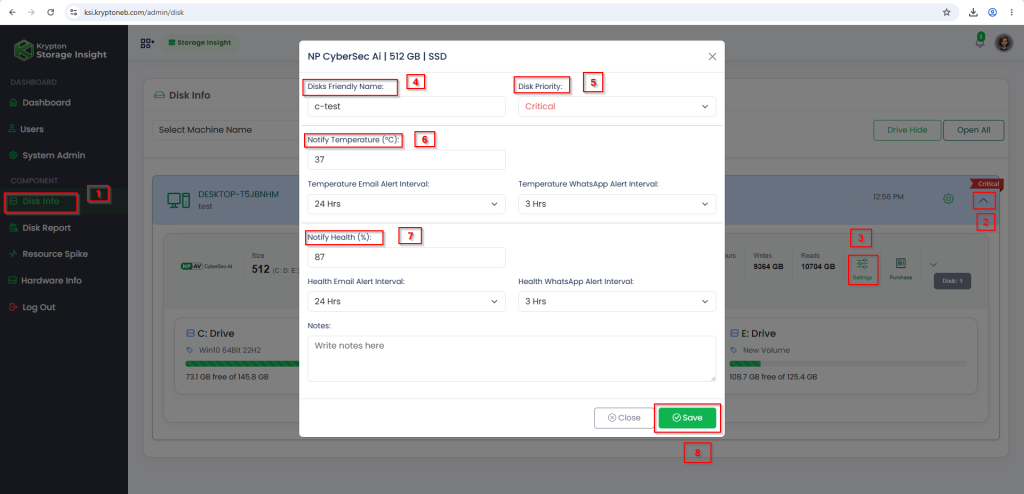
This image has an empty alt attribute; its file name is image-24-1024x494.png

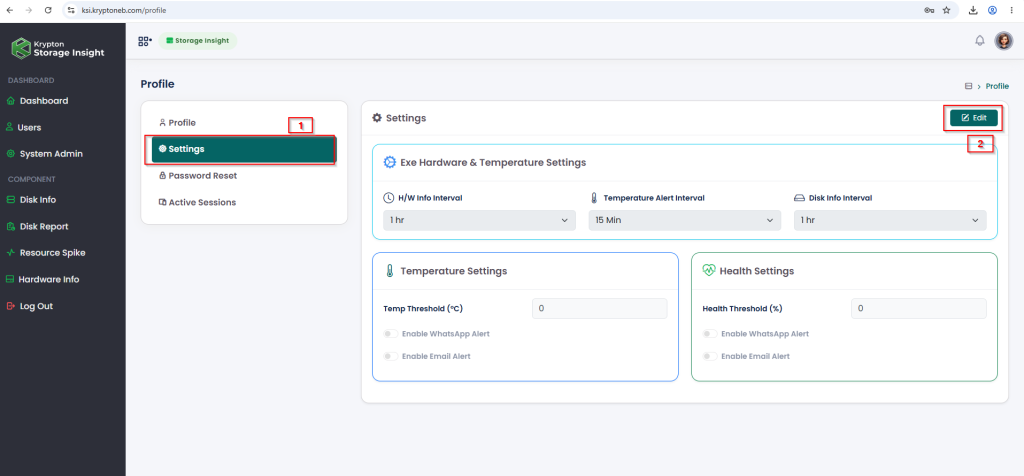
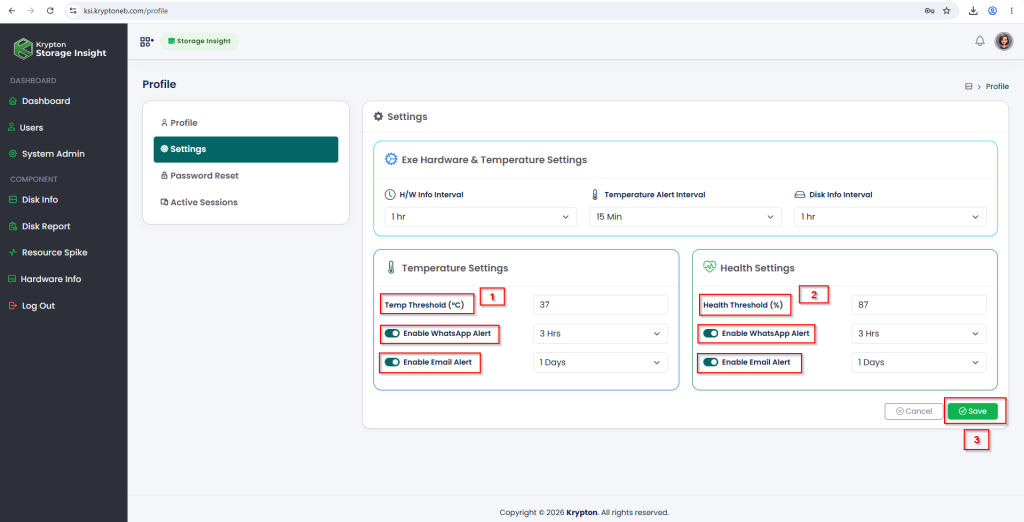
  • From the profile details, you can set alerts for all machines registered under your CORP ID or EMAIL ID.
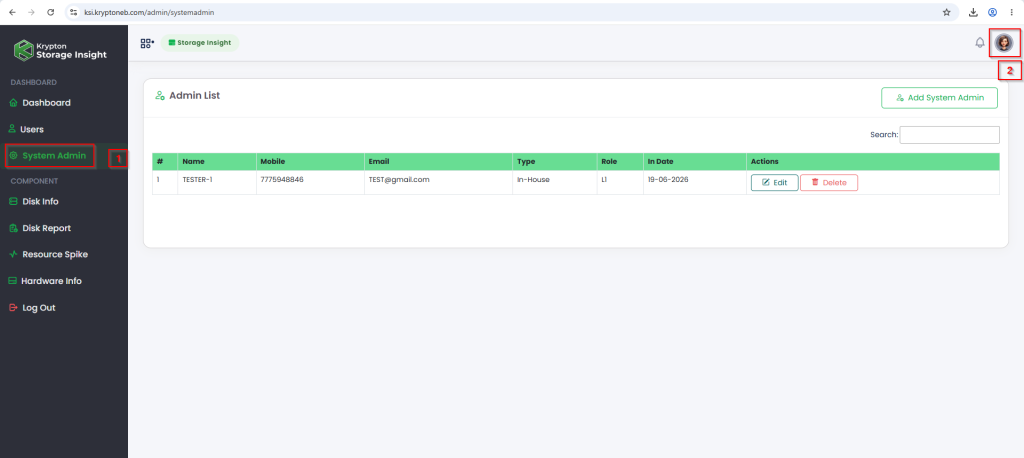
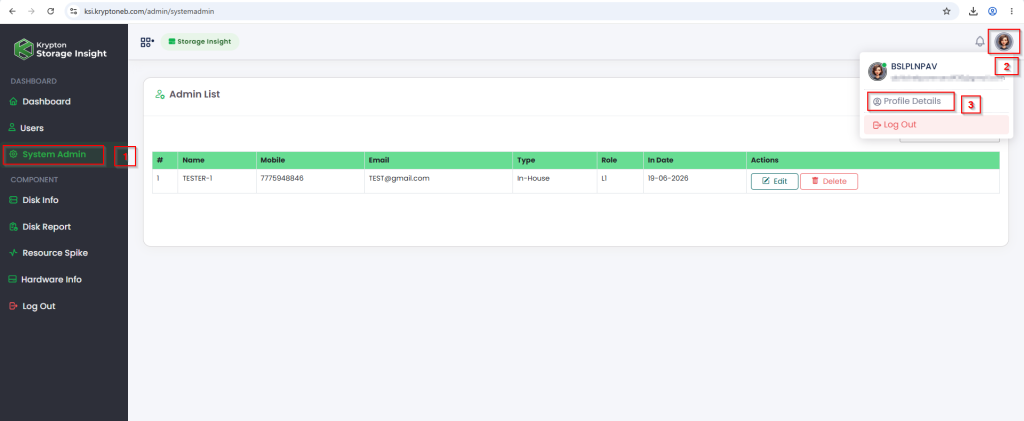
This image has an empty alt attribute; its file name is image-25-1024x458.png
This image has an empty alt attribute; its file name is image-26-1024x421.png
This image has an empty alt attribute; its file name is image-27-1024x476.png
This image has an empty alt attribute; its file name is image-28-1024x522.png

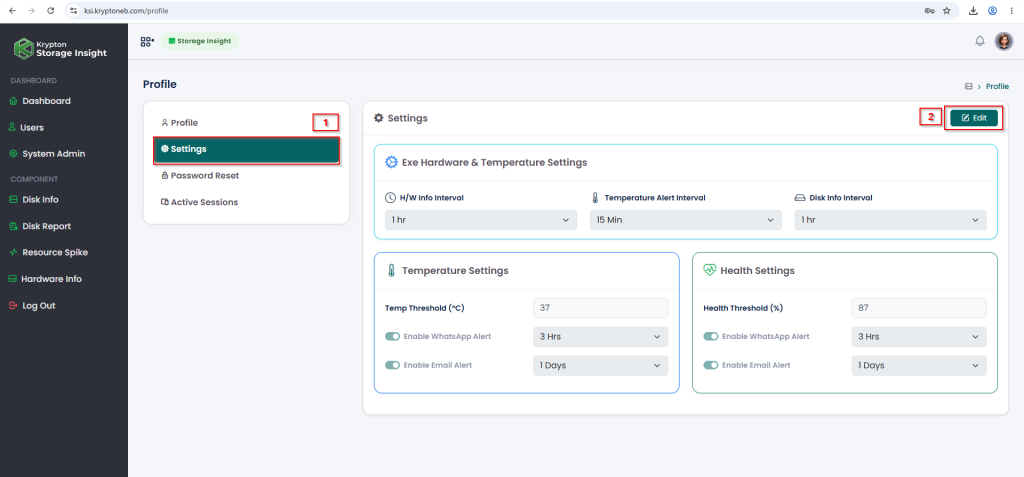
After saving the settings, you can edit them by clicking the Edit button

This image has an empty alt attribute; its file name is image-29-1024x477.png